Navigate the Next-Gen Viewer in Model Manager

Procore Model Manager - Beta Access & Feedback

The Model Manager (Beta) tool is exclusively available to registered beta participants. It is not available through Procore Explore. To learn more, see Beta Participant Guide.

  • To access the beta and provide feedback Show/Hide Details

    • To register: Participating companies must sign the Procore Beta Agreement. Once signed, your Procore Administrator coordinates with your Procore point of contact to enable Model Manager (Beta) on specific Procore projects.

    • To Provide Feedback During Beta: Contact your dedicated Beta program lead.

    • To report issues: Report breaking changes to Procore Customer Support. For general feedback or non-critical issues, contact your Beta program lead or Procore point of contact.

  • Notice: Procore Beta Services & Documentation Show/Hide Details

    For information about Beta Services, see the Procore Subscription Services Agreement. This documentation supports a product currently in Beta; content is actively being developed for General Availability (GA) and may be incomplete.

    • As-Is Basis: Provided solely for evaluation purposes on an "as is" basis.

    • No Warranties: Standard contractual commitments do not apply. This information carries no formal product commitments, and Procore assumes no liability for harm arising from its use.

    • Subject to Change: Procore may change, discontinue, or choose not to generally release these Beta Services at any time without notice.

Procore is finalizing functionality and documentation for general availability in the UK and Ireland (UKI). Please check back here for updates.

The Next-Gen Viewer lets you customize how you explore the project model. By adjusting the field of view or switching projection modes, you can view realistic spatial depth or remove distortion to check technical details. These tools help you easily navigate complex sites and precisely verify alignments. Admins can also view appended files here.

Things to Consider

Prerequisites

Camera Field of View (FOV)

The FOV setting dictates the "focal length" of your virtual lens. In the Next-Gen Viewer, this is measured in degrees.

Feature

Behavior

Default setting

The default setting is 65° for new views created within the platform.

Imported views

Imported viewpoints from Navisworks® or Revit® retain their original FOV.

Distortion

High FOV (90°+) may cause a "fish-eye" effect, while low FOV (45°) may feel "zoomed in." The viewer allows these to persist if that is how the view was saved.

Adjustments

If a view looks distorted, Procore recommends resetting the Home view in Navisworks® to 65° and republishing to the document repository.

Projection Modes

Projection modes determine how 3D space is interpreted within the viewer. By switching modes, you can choose the view that best suits your current task—whether you need a realistic sense of depth for navigation or an undistorted view for verifying technical alignments.

Tip

What's the difference between Perspective and Orthographic mode?

Perspective mode mimics the human eye, making objects that are further away appear smaller. This creates a sense of depth that is ideal for walking through a site or orienting yourself within the 3D environment.

This image shows an example of the Model Manager tool's default projection mode in the viewer, which is Perspective mode.

Orthographic mode removes depth distortion so every object maintains its true scale, regardless of its distance from the camera. This is a helpful tool for checking if systems are vertically aligned or for capturing clear elevation views without the distortion of a vanishing point.

This image shows an example of the Model Manager tool's viewer when set to Orthographic mode.

How to Switch Between Projection Modes

For steps, see Switch Projection Modes in the Next-Gen Viewer.

Left Toolbar

When using the Next-Gen Viewer in the web application, a vertical toolbar appears on the left side of the screen, giving you fast access to navigation and design coordination tools.

In the Model Manager, the left toolbar in the Model Viewer is a persistent, vertical toolbar that puts navigation and frequently used design coordination tools at your fingertips.

How to Use the Left Toolbar

For steps, see Use the General Tools in the Left Toolbar on Web.

Right Toolbar

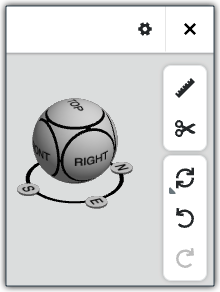
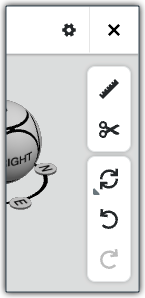
The toolbar next to the Navigation Sphere on the right side of the page Next-Gen Viewer helps to control the visual environment and your interactions with the model. While the left toolbar deals with object data, the right toolbar helps you manipulate the model.

In the Model Manager tool, the right toolbar in the Model Viewer helps to control the visual environment and your interactions with the model.

How to Use the Right Toolbar

For steps, see Use the Model Display & Inspection Tools in the Right Toolbar.

Context Menu

The Context menu provides a centralized way to control how you view and interact with 3D model data. By using these tools, you can perform actions to quickly declutter your view, find similar items across the entire project, and inspect complex internal details without losing the overall context of the model.

In the Model Manager tool, the Actions menu in the Model Viewer lets you manage object visibility, isolate specific attributes, and navigate the model's details.

How to Use the Context Menu

For steps, see Use the Context Menu in the Next-Gen Viewer.


Windows is a registered trademark of Microsoft Corporation in the United States and other countries. Google Chrome, Android, and Google Play are trademarks of Google LLC. iPhone, iPad, and App Store are trademarks or service marks of Apple Inc., registered in the U.S. and other countries and regions. iOS is a trademark or registered trademark of Cisco in the U.S. and other countries and is used under license by Apple Inc. Autodesk, AutoCAD, Civil 3D, Navisworks, and Revit are registered trademarks or trademarks of Autodesk, Inc., and/or its subsidiaries and/or affiliates in the USA and other countries. All other trademarks are the property of their respective owners.