Header & Global Actions
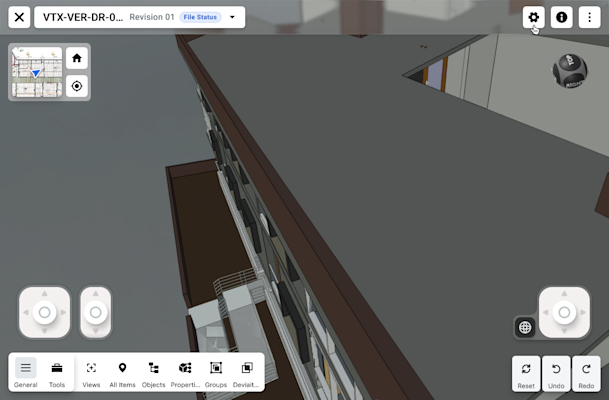
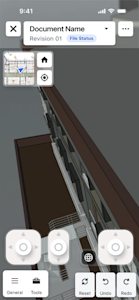
Document Info: Displays the active Document Name and current Revision number, and a color-coded File Status badge.
Settings: Access viewer preferences, rendering options, and selection resolution.
Info: Access the model's metadata.
More: Access additional options.
Navigation & Orientation
2D Minimap: Displays a 2D drawing overlay showing your current location (blue arrow) relative to the building footprint.
Home Icon: Resets the camera to the Home View.
Center/Target Icon: Re-centers the view on a selected object or your current coordinate position.
On-Screen Joystick Controls
Use the joysticks to navigate or walkthrough the model.
Left Joystick: Controls lateral movement. Slide the stick to move the camera forward, backward, left, or right. The farther you drag the stick from center, the faster the camera moves. A small drag produces finer, slower movement.
Center Slider: Controls vertical movement. Move the camera directly up or down.
Right Joystick: Controls camera rotation. Rotating this stick changes the direction you are facing (pan or tilt) without moving your physical position in the model. You can combine the Left Joystick, Center Slider, and Right Joystick at the same time to move, look around, and change elevation together.
Gyroscope Button. Click the Gyroscope button to the left of the Right Joystick to use your tablet or mobile device as a gyroscope to visually look around the map.
To learn more, see Explore Models Using Joystick & Touch Gestures.
Touch Gestures
You can also navigate the model using touch gestures instead of the on-screen joysticks.
Zoom in or out on the model: Pinch or spread with two fingers
Look around the model. Drag with one finger.
Pan the view. Drag with two fingers.
Orbit around the model: Drag with three fingers.
To learn more, see Explore Models Using Joystick & Touch Gestures.
Analysis & Management Toolbar
General/Tools: Switches between high-level management and specific measurement/markup tools.
Model Breakdown: Includes Views (saved project views), All Items (tree list), Objects, Properties, Groups, and Deviations (for clash or tolerance analysis).
History Controls: Reset (view), Undo, and Redo for model interactions.