Optimize Your Web Browser for Model Manager

Procore Model Manager - Beta Access & Feedback

The Model Manager (Beta) tool is exclusively available to registered beta participants. It is not available through Procore Explore. To learn more, see Beta Participant Guide.

  • To access the beta and provide feedback Show/Hide Details

    • To register: Participating companies must sign the Procore Beta Agreement. Once signed, your Procore Administrator coordinates with your Procore point of contact to enable Model Manager (Beta) on specific Procore projects.

    • To Provide Feedback During Beta: Contact your dedicated Beta program lead.

    • To report issues: Report breaking changes to Procore Customer Support. For general feedback or non-critical issues, contact your Beta program lead or Procore point of contact.

  • Notice: Procore Beta Services & Documentation Show/Hide Details

    For information about Beta Services, see the Procore Subscription Services Agreement. This documentation supports a product currently in Beta; content is actively being developed for General Availability (GA) and may be incomplete.

    • As-Is Basis: Provided solely for evaluation purposes on an "as is" basis.

    • No Warranties: Standard contractual commitments do not apply. This information carries no formal product commitments, and Procore assumes no liability for harm arising from its use.

    • Subject to Change: Procore may change, discontinue, or choose not to generally release these Beta Services at any time without notice.

To ensure the best performance of the Next-Gen Viewer in the Model Manager (Beta), your browser (Google Chrome or Microsoft Edge) should be configured to use the GPU (Graphics Processing Unit). This helps accelerate rendering and enhance overall responsiveness.

Info

If your interface looks different than the steps described on this page, please consult the official documentation for your specific OS or browser version. Procore does not manage third-party software settings, but we recommend these optimizations for the best experience with our 3D tools.

Things to Consider

  • Required User Permissions

  • Additional Information:

    • Updates: Ensure your Windows OS and graphic drivers are up to date.

    • Scope: Repeat these steps for any other browser you use with the Next-Gen Viewer.

Note

Viewing on Mobile? Manual optimization is not required for iOS or Android. The Procore BIM Plugin automatically utilizes your device's hardware. For best performance, see What are the hardware and software specifications for viewing models?

Prerequisites

Before attempting to enable hardware-accelerated GPU scheduling, verify that your Windows® system uses the required driver model as follows:

  1. On your keyboard, press the Windows (Win) + R keys.

  2. In the Open box, type dxdiag.

  3. Click OK.

  4. In the DirectX Diagnostic Tool window, click the Display tab.

  5. Under the Drivers section, locate Driver Model. Note: If the version is WDDM 2.7 or higher, your hardware supports this feature.

Steps

Configure your web browser to use the GPU (Graphics Processing Unit) as follows:

Enable Hardware-Accelerated GPU Scheduling

  1. On your Windows® device, open the Start menu and type: Graphics Settings.

  2. Select Graphic Settings.

  3. Scroll to Advanced Graphic Settings and expand the list.

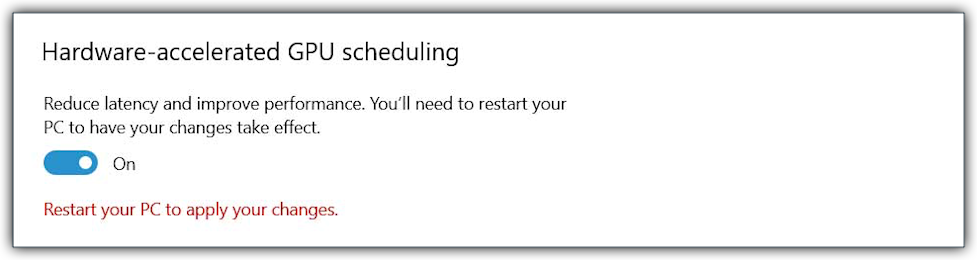
  4. Toggle Hardware-Accelerated GPU Scheduling to On.

    Note

    If this setting isn't available, confirm your Windows OS and GPU drivers are current, and that you driver model meets the WDDM 2.7+ prerequisite above.

Set Your Browser to High Performance

  1. In Graphics Settings, under Custom Settings for Application, type the name of your browser in the Search this List box. For example, search for: Google Chrome or Microsoft Edge

  2. If it doesn't appear, click Add Desktop App and locate the .exe:

    • For Google Chrome: C:\Program Files\Google\Chrome\Application\chrome.exe

    • For Microsoft Edge: C:\Program Files (x86)\Microsoft\Edge\Application\msedge.exe

  3. Click the browser's title to expand its settings.

  4. Under GPU Preference, select High performance (or Let Windows decide (High performance), depending on your Windows version).

  5. Close the System > Display > Graphics window.

Restart Your Computer

Restart your Windows® device to apply your changes.


Windows is a registered trademark of Microsoft Corporation in the United States and other countries. Google Chrome, Android, and Google Play are trademarks of Google LLC. iPhone, iPad, and App Store are trademarks or service marks of Apple Inc., registered in the U.S. and other countries and regions. iOS is a trademark or registered trademark of Cisco in the U.S. and other countries and is used under license by Apple Inc. Autodesk, AutoCAD, Civil 3D, Navisworks, and Revit are registered trademarks or trademarks of Autodesk, Inc., and/or its subsidiaries and/or affiliates in the USA and other countries. All other trademarks are the property of their respective owners.