Create Model Snapshots

Procore Model Manager - Beta Access & Feedback

The Model Manager (Beta) tool is exclusively available to registered beta participants. It is not available through Procore Explore. To learn more, see Beta Participant Guide.

  • To access the beta and provide feedback Show/Hide Details

    • To register: Participating companies must sign the Procore Beta Agreement. Once signed, your Procore Administrator coordinates with your Procore point of contact to enable Model Manager (Beta) on specific Procore projects.

    • To Provide Feedback During Beta: Contact your dedicated Beta program lead.

    • To report issues: Report breaking changes to Procore Customer Support. For general feedback or non-critical issues, contact your Beta program lead or Procore point of contact.

  • Notice: Procore Beta Services & Documentation Show/Hide Details

    For information about Beta Services, see the Procore Subscription Services Agreement. This documentation supports a product currently in Beta; content is actively being developed for General Availability (GA) and may be incomplete.

    • As-Is Basis: Provided solely for evaluation purposes on an "as is" basis.

    • No Warranties: Standard contractual commitments do not apply. This information carries no formal product commitments, and Procore assumes no liability for harm arising from its use.

    • Subject to Change: Procore may change, discontinue, or choose not to generally release these Beta Services at any time without notice.

Procore is finalizing functionality and documentation for general availability in the UK and Ireland (UKI). Please check back here for updates.

Snapshots capture the current state of a federated model in Model Manager (Beta), including applied section planes, hidden elements, and mapped sheets, so admins can preserve a specific view for later reference. Once published, a snapshot's state is frozen and stays available even as the live federated scene changes.

Things to Consider

  • Required User Permissions

    • 'Standard' and 'Admin' level permissions on the Model Manager tool.

    • 'Read-Only' users are restricted to viewing snapshots.

  • Additional Information

    • Snapshots cannot be updated. To replace one, create a new snapshot.

    • Hidden objects including ones located outside of the section volume are excluded from the snapshot to reduce file size.

    • Viewpoints, pins, and Connected BIM items created within a snapshot automatically flow back to the federated scene.

    • Snapshots can be downloaded for offline viewing on the Procore mobile app for iOS and Android.

    • There is a limit of six (6) section planes per snapshot.

Prerequisites

Steps

  1. Navigate to the Model Manager (Beta) tool.

  2. Open a project model.

  3. Configure the model view to the state you want to capture:

    • Use the navigation tools to set a camera angle.

    • Apply sectioning to isolate the required area.

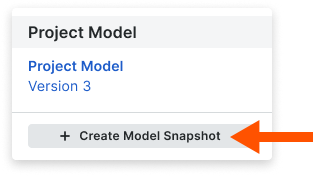
  4. Click Create Snapshot.

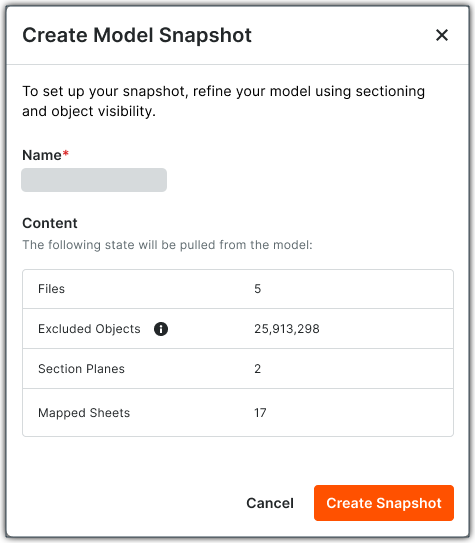
  5. In the Name field, enter a name for the snapshot.

  6. Review the Summary, which shows the number of files included, objects excluded, section planes applied, and 2D sheets mapped.

  7. Click Create.

Tips

What is the status of the snapshot? Status information is in the Model Snapshots card:

  • Processing: The snapshot is being generated.

  • Published: The snapshot is available for users to view.

  • Failed: The snapshot could not be created. Verify the model geometry and attempt the process again.