The Model Manager (Beta) features and documentation are subject to change without notice. Please be aware that this content is restricted to beta participants and requires a direct link to access.
To access the beta and provide feedbackShow/Hide Details
How to Access: Participating companies must sign the Procore Beta Agreement. Once signed, your Procore Administrator coordinates with your Procore point of contact to enable Model Manager (Beta) on specific Procore projects.
How to Provide Feedback During Beta: Contact your dedicated Beta program lead.
How to report critical issues: Report breaking changes to Procore Customer Support. For general feedback or non-critical issues, contact your Beta program lead or Procore point of contact.
Currently, only Admin permissions are available. Procore will add more permission levels later.
In the Next-Gen Viewer, linking items from Procore tools to 3D model objects works the same way regardless of where your team stores its federated project model. Unlike pinning, object linking is tied strictly to 3D physical geometry rather than spatial coordinates. Links exist exclusively in the 3D model and do not synchronize to 2D drawing sheets or PDFs.
Tip
What's the difference between a link & a pin in a model? A link ties a Procore record directly to a physical 3D model object (like a specific pipe or door). It does not require dropping a spatial pin. A pin ties a record to a specific spatial coordinate (X, Y, Z location) in the model by dropping a visual 3D pin.
Things to Consider
Required User Permissions:
Permissions to create the item in the supported feature/tool.
Permissions to your project's chosen document repository:
Document Management
Documents
Supported Features/Procore Tools:
Show/Hide Details
Feature/Tool
Create & Link New Items?
Link Objects to Existing Items?
Coordination Issues
Yes
Yes
Inspections
No
Yes
Observations
Yes
Yes
Punch List/Snag List
Yes
Yes
RFIs
No
Yes
Submittals
No
Yes
Additional Information:
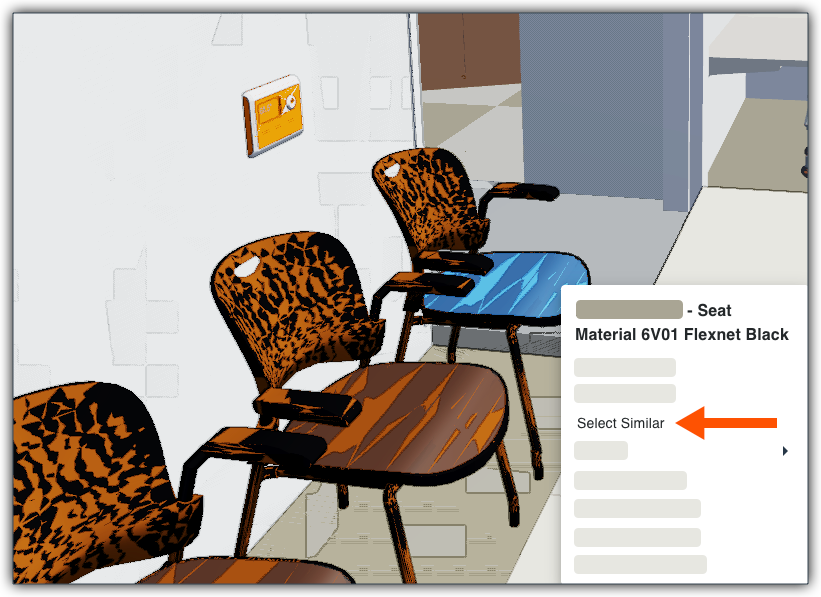
You can link a single item to multiple model objects at the same time using the 'Select Similar' function. For example, you can link a single mechanical inspection to multiple HVAC control units.
You can link multiple items from the same project tool to a single object, but not in one simultaneous action. Each record must be linked to the object in its own separate action. For example, you could link three separate inspections (i.e., electrical, mechanical, and fire/safety) to a single Air Handling Unit.
Steps
Follow these steps to link objects in a 3D Model to items in supported Procore tools.
Navigate to the Model Manager (Beta) tool.
Open a model.
Choose from these options:
Link objects to a new items Show/ Hide Steps
Select one or multiple objects in the 3D model:
To select one object, right-click it and choose Create New Item from the menu.
To select multiple objects, right-click one object and choose Select Similar to highlight all identical items in the model. Next, right-click again and choose Create New Item from the menu.
In the item creation form for the selected tool, complete the required fields and click Create.
Link objects to an existing item Show/ Hide Steps
Select one or multiple objects in the 3D model:
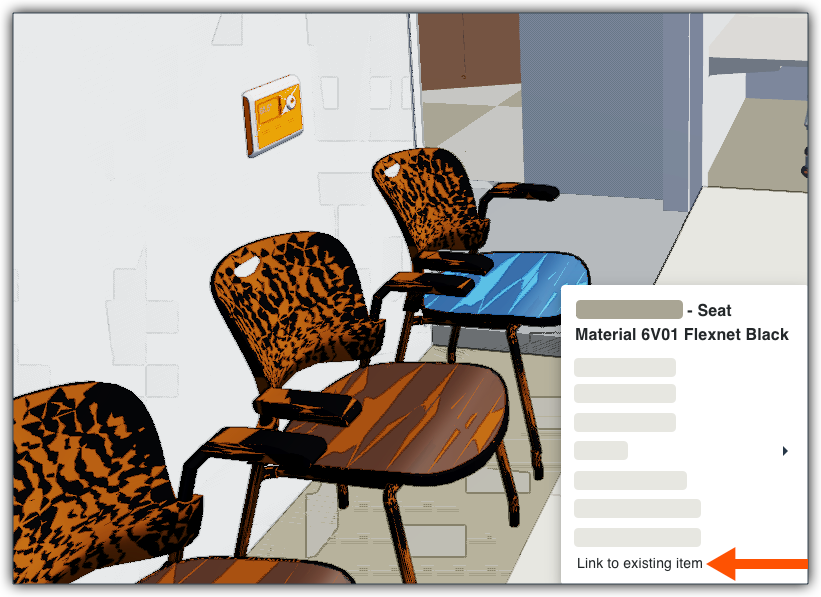
To select one object, right-click it and choose Link Existing Item from the menu.
To select multiple objects, right-click one object and choose Select Similar to highlight all identical items in the model. Next, right-click again and choose Link Existing Item from the menu.
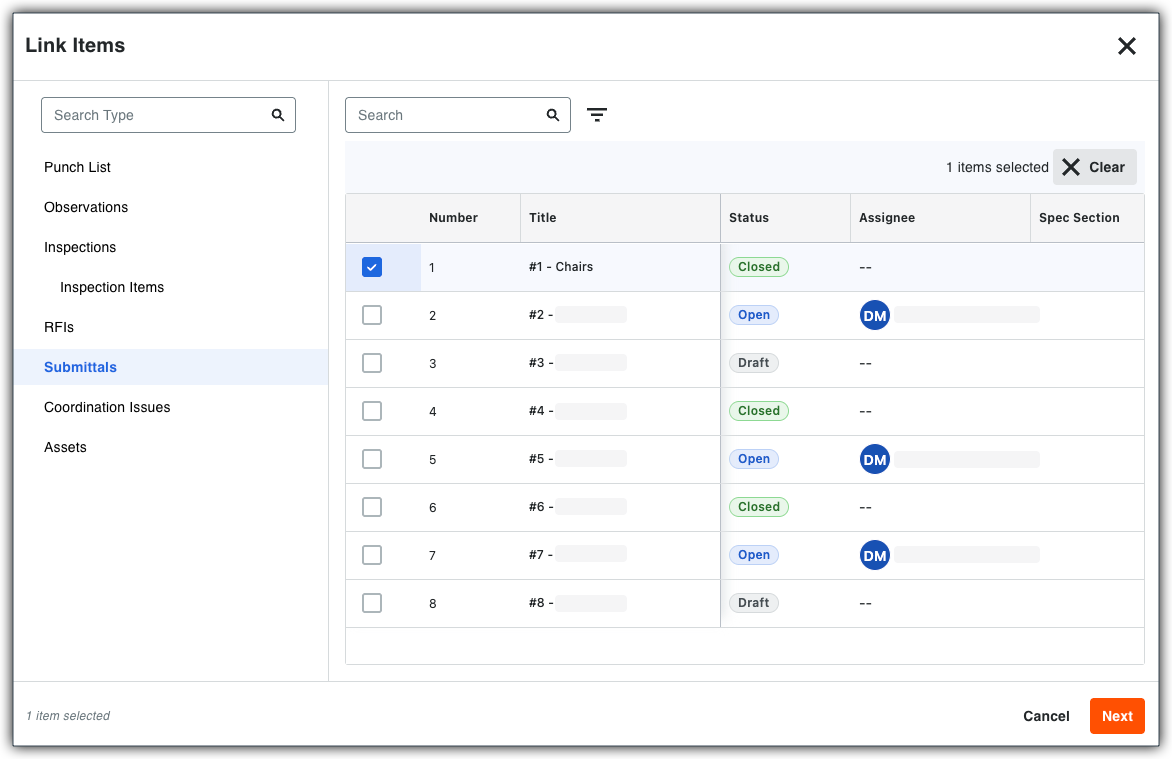
In the Related Items window, select the Inspections tool. A list of existing inspection records appears.
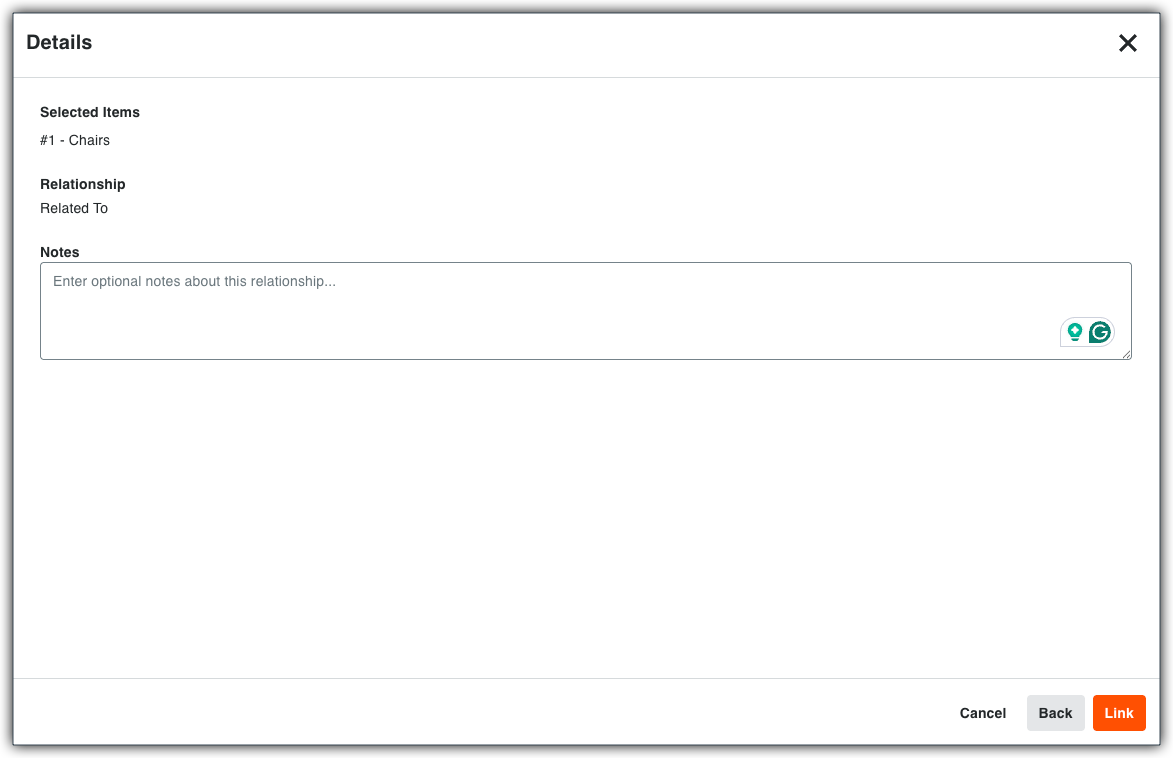
Select the specific inspection record to attach. You can only select one (1) record at a time.
Windows is a registered trademark of Microsoft Corporation in the United States and other countries. Google Chrome, Android, and Google Play are trademarks of Google LLC. iPhone, iPad, and App Store are trademarks or service marks of Apple Inc., registered in the U.S. and other countries and regions. iOS is a trademark or registered trademark of Cisco in the U.S. and other countries and is used under license by Apple Inc. Autodesk, AutoCAD, Civil 3D, Navisworks, and Revit are registered trademarks or trademarks of Autodesk, Inc., and/or its subsidiaries and/or affiliates in the USA and other countries. All other trademarks are the property of their respective owners.