Ajouter une ventilation des coûts du sous-traitant à un engagement

Contexte

Dans Procore, l’onglet Sous-traitant VDC est activé sur l’outil Engagements par par défaut. Cet onglet permet à vos sous-traitants en aval de fournir une ventilation détaillée des éléments de travail spécifiques d’un engagement. Cette ventilation est saisie par vos sous-traitants dans un onglet distinct, afin de garantir que les montants engagés sur chaque poste dans l’onglet Ventilation des coûts général du contrat de sous-traitance restent cohérents avec l’accord approuvé.

Example

Let's assume you are a general contractor and have a subcontract with 'ABC Concrete'. Before your company will approve payment for work items on that subcontract, you want the subcontractor to provide a line item breakdown of each cost code/cost type combination to describe their costs in more detail.

To do this, you can have Procore send an email notification to the designated 'Invoice Contact' on the commitment. This email asks their company to complete the Subcontractor SOV. After the subcontractor adds their detailed line item breakdown to demonstrate their labor costs, materials, or other costs associated with the work items, they can then submit the completed data entry back for your review.

Éléments à prendre en compte

  • Autorisations utilisateur requises :

    • Pour ajouter un poste à l’onglet Sous-traitant VDC de n’importe quel contrat, autorisations de niveau 'Admin' dans l’outil Engagements du projet.

    • Pour ajouter un poste à l’onglet Sous-traitant VDC d’un contrat spécifique, vous devez disposer des autorisations de niveau « Lecture seule » ou supérieures et être le contact de facturation désigné par le engagement. Pour en savoir plus, consultez l’article Qu’est-ce qu’un contact de facturation ?

    • Pour ajouter un poste à l’onglet sous-traitant VDC lorsqu’un contrat n’est pas marqué comme « Privé », autorisations de niveau « Lecture seule » ou « Standard » dans l’outil Engagements du projet avec le autorisation granulaire « Créer un contrat de bon de commande » et/ou « Créer un contrat d'ordre de travail » Autorisation activée dans votre modèle d’autorisations.

    • Pour ajouter un poste à l’onglet Sous-traitant VDC lorsqu’un contrat est marqué comme « Privé », autorisations de niveau « Standard » dans l’outil Engagements du projet et ajoutées en tant que « contact de facturation » et en tant que membre de la liste déroulante « Privé », avec la case à cocher « Autoriser les utilisateurs à voir les éléments VDC » activée sur le bon de commande ou le contrat de sous-traitance.

  • Limitations:

  • Informations complémentaires :

    • Pour mettre à jour un Sous-traitant VDC, il doit se trouver dans Ébauche ou dans le statut « Réviser et renvoyer ».

    • Vous devez ajouter des postes au Sous-traitant VDC avant de créer des factures de sous-traitant pour le bon de commande ou contrat de sous-traitance.

  • Pour les entreprises utilisant l’outil Icon Erp Synced Legacy Intégrations ERP : Afficher/Masquer

Conditions préalables

Steps

Create a Commitment

Quel type de contrat d’engagement souhaitez-vous créer ?

Bon de commande :

Contrat de sous-traitance :

Update the Schedule of Values

These steps show you how to update the general Schedule of Values.

  1. Navigate to the project's Commitments tool.

  2. Under the Contracts tab, locate the purchase order or subcontract.

  3. Click the Number link of the contract to open.

  4. In the General tab, click Edit Contract.

     Important

    Pour mettre à jour la ventilation des coûts, un utilisateur doit être désigné comme contact de facturation. Voir Ajouter des contacts de facturation à un bon de commande ou à un contrat de sous-traitance

  5. Scroll to the Schedule of Values section.

     Remarque

    Si la bannière « Les postes de ce contrat ne peuvent pas être ajoutés ou modifiés » apparaît, cliquez sur Afficher les détails pour voir une explication.

  6. If you are permitted to add line items to the Schedule of Values, click the Add Line button.

  7. Add the line item as follows:
    Schedule of Values

    This table details the columns in the line item entry.

    Column Name

    Do the following...

    Important Information

    To learn more...

    Change Event Line Item

    Select a change event line item to link to the contract from the drop-down list.

    This column only appears if the Change Events tool is active on the project.

    Add the Change Events tool to the project as described in Add and Remove Project Tools.

    Prime Line Item

    Select a line item from the prime contract's Schedule of Values from the drop-down list.

    This column always appears. If you are adding a line item to the contract's Schedule of Values that is NOT accounted for in the prime contract, select the Non-Budgeted option.

    Update the Schedule of Values on a Prime Contract

    Budget Code

    Select a budget code from the drop-down list or click Create a Budget Code.

    Budget codes are created in Procore's Work Breakdown Structure.

    See What is a budget code in Procore's WBS? Create Budget Codes in Procore's Project Financials Tools

    Description

    Enter a description for the new line item that you are adding to the commitment contract's Schedule of Values.

    N/A

    N/A

    Tax Code

    Select a Tax Code to associate with the line item.

    This column is only available when the tax codes feature is enabled in Procore.

    How can I use tax codes on a project?

    Amount

    Enter the cost associated with the line item's scope of work.

    This is a currency value.

    N/A

    Billed To Date

    This column updates automatically.

    After you create one (1) or more invoices for this line item, the value in this column updates to show the amount billed to date.

    About Subcontractor Invoices

    Amount Remaining

    This column updates automatically.

    After you create one (1) or more invoices for this line item, Procore updates the value in this column to show the amount remaining to be billed.

    About Subcontractor Invoices

  8. Repeat the steps above for all the line item(s) that you want to add to the contract's Schedule of Values.

  9. Once you are done adding line items, do one of the following:

    • If you are creating a new contract, click Create.
      OR

    • If you are editing an existing contract, click Save.

  10. Optional: If you have enabled the Subcontractor Schedule of Values (SSOV) and want to send an alert to the invoice contact to update the SSOV, continue with the next step.

Send a Subcontractor Schedule of Values Notification

If the Subcontractor SOV tab is enabled on the project (see Enable or Disable the Subcontractor SOV Tab on the Commitments Tool), you can send a notification to your downstream collaborator's invoice contact to alert them to complete their required detailed line item breakdown in the contract's Subcontractor Schedule of Values. To learn more, see What is a Subcontractor Schedule of Values?

 Remarque

Pour envoyer la notification de ventilation des coûts du sous-traitant, le contrat d’engagement doit avoir le statut Ébauche ou Réviser et renvoyer. Le bouton « Envoyer la notification VDCS » n’est PAS disponible lorsque le contrat est dans un autre statut.

  1. Click the Subcontractor SOV tab.

  2. Optional: Click Edit SSOV and make any necessary changes and click Save.

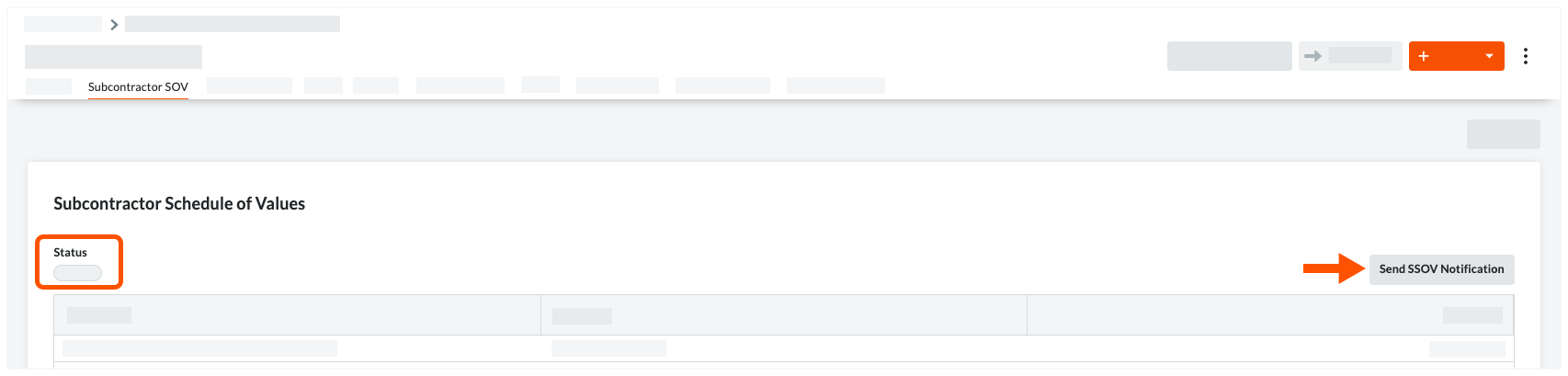
  3. Click the Send SSOV Notification button.
    Send Ssov Notification Button

     Remarques
    • Si le bouton Envoyer la notification VDCS est grisé et indisponible, vous devez ajouter une « Entreprise sous-traitante » et au moins un (1) « Contact de facturation » à l’engagement pour activer le bouton. Voir Modifier un engagement.

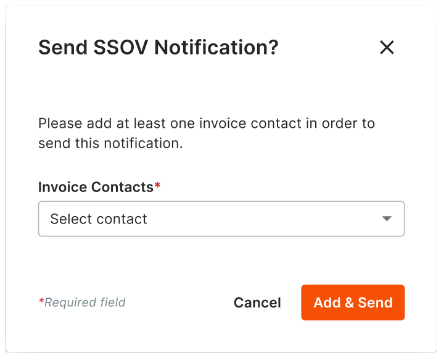
    • Si l’option Envoyer la notification VDCS ? s’affiche, vous devez ajouter au moins un (1) contact de facturation à l’engagement avant que Procore n’envoie une notification. Sélectionnez le contact dans la liste déroulante Contacts de facturation et cliquez sur Ajouter et envoyer. Send Ssov Notification Invoice Contacts


    • Si le contact de facturation que vous souhaitez ajouter n’apparaît pas dans la liste déroulante « Contact de facturation », vérifiez dans le dossier de l’entreprise pour l’icône « Entreprise sous-traitante » de l’engagement dans l’Annuaire du projet. Vous devrez peut-être ajouter un compte utilisateur à l’annuaire du projet pour cette entreprise.

A GREEN banner appears when Procore sends an email message to the individual designated as the 'Invoice Contact' on the commitment contract. The email alerts the invoice contact to update the Subcontractor Schedule of Values with a detailed breakdown for each line item on the contract's general Schedule of Values.

Update the Subcontractor SOV

Ouvrir la ventilation des coûts du sous-traitant à partir de l’outil Engagements.

 Pointe

Avez-vous reçu un e-mail vous invitant à fournir une ventilation de votre ventilation des coûts sur un engagement ? Si vous êtes un contact de facturation pour « l’Entreprise sous-traitante » dans le cadre d’un contrat d’engagement, l’entreprise pour laquelle vous effectuez des travaux peut vous inviter à fournir une ventilation détaillée des ventilation des coûts d’un contrat d’engagement. Pour répondre à cet e-mail au lieu de suivre les étapes ci-dessous, voir Comment soumettre une ventilation des coûts du sous-traitant pour un engagement Procore ?

  1. Accédez à l’outil Engagements du projet.

  2. Cliquez sur l’onglet Contrats .

  3. Recherchez le bon de commande ou le contrat de sous-traitance avec lequel travailler et cliquez sur le lien Numéro.

  4. Cliquez sur l’onglet Sous-traitant VDC.

  5. Passez à l’étape suivante.

Mettre à jour le Planning des valeurs du sous-traitant

Si vous êtes un administrateur des factures (ou un contact de facturation qui a été invité à mettre à jour un Sous-traitant VDC ), vous pouvez effectuer ces étapes sur le Contrat d’engagement.

  1. Dans la engagement, cliquez sur l’onglet Sous-traitant VDC.

     Remarque

    Si vous ne voyez PAS d’onglet « Sous-traitant VDC » dans le contrat engagement, un utilisateur avec des autorisations de niveau Admin sur le L’outil Engagements doit l’activer. Voir Ajouter un Sous-traitant VDC à un Engagement et Activer ou désactiver l’onglet Sous-traitant VDC dans l’outil Engagements.

  2. Cliquez sur Modifier.

  3. Dans l’onglet Sous-traitant VDC, saisissez une ventilation détaillée des postes comme suit :
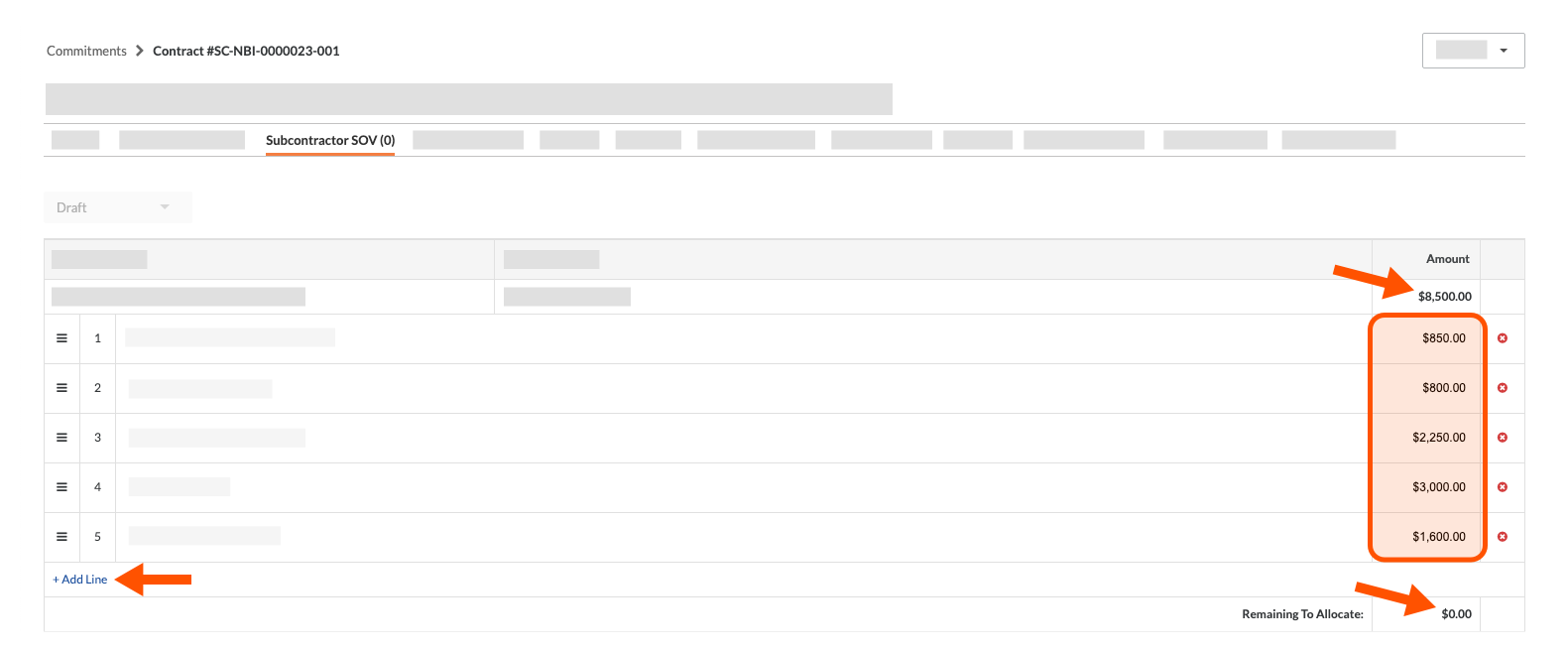
    Sub Sov Remaining To Allocate

    • Cliquez sur le lien +Ajouter un élément de poste.

    • Dans la zone Description , ajoutez une description détaillée du travail à effectuer.

    • Dans la zone Montant , ajoutez le montant spécifique pour ce travail.

    • Continuez cette étape jusqu’à ce que le montant « Restant à allouer » pour ce code budgétaire et cette description soit de 0,00 $.

  4. Lorsque vous avez alloué tous les montants dans l’onglet Sous-traitant VDC, cliquez sur le bouton Soumettre.

     Remarques
    • Le bouton Soumettre est grisé et indisponible jusqu’à ce que les champs Restant à allouer dans le Sous-traitant VDC affichent tous 0,00 $.

    • Après avoir cliqué sur le bouton, Procore remplace le statut du Sous-traitant VDC par En cours de révision.

    • Vous ne serez PAS en mesure de modifier votre soumission à moins que le administrateur des factures ne change le statut de l’Sous-traitant VDC en Réviser et soumettre à nouveau.

Prochaine étape

Voir aussi

Chargement des articles connexes...