Se connecter à SQL Server à l’aide de Python (SSIS)
Aperçu
L’outil Analytics Cloud Connect Access est une interface de ligne de commande (CLI) qui vous aide à configurer et à gérer données transferts de Procore vers MS SQL Server. Il se compose de deux composantes principales :
user_exp.py (Utilitaire de configuration et de configuration)
delta_share_to_azure_panda.py( Données script de synchronisation)
Conditions préalables
Python et pip installés sur votre système.
Accès à Procore Delta Share.
Identifiants de compte MS SQL Server.
Téléchargez le lot au format fichier zip à partir de l’outil Analytics niveau Entreprise (via Analytics > Mise en route > Options de connexion > SQL Server).
Installez les dépendances requises : pip install -r requirements.txt.
Escalier
Configuration initiale
Synchronisation des données
Delta Share Configuration
MS SQL Server Configuration
SSIS Configuration
Configuration initiale
Exécutez l’utilitaire de configuration : python user_exp.py
Cela vous aidera à configurer les éléments suivants :
Configuration de la source Delta Share
Configuration de la cible MS SQL Server
Préférences de Planning
Synchronisation des données
Après la configuration, vous disposez de deux options pour exécuter la synchronisation des données :
Exécution directe python delta_share_to_azure_panda.py
OUExécution planifiée
S’il est configuré lors de la configuration, le projet s’exécutera automatiquement selon votre planning cron.
Delta Share Configuration
{
"shareCredentialsVersion": 1,
"bearerToken": "xxxxxxxxxxxxx",
"endpoint":"https://nvirginia.cloud.databricks.c...astores/xxxxxx"
}Obtenir les champs obligatoires :
Remarque : Ces informations peuvent être obtenues à partir de l’application Web Analytics.ShareCredentialsVersion : numéro de version (actuellement 1).
BearerToken : votre jeton d’accès Delta Share.
Point de terminaison : l’URL de votre point de terminaison Delta Share.
Enregistrez le fichier dans un lieu sûr.
Lors de la configuration de la source de données, il vous sera demandé de fournir :
Liste des tableaux (séparés par des virgules).
Laissez le champ vide pour synchroniser tous les tableaux.
Exemple : table1, table2, table3.
Chemin d’accès à votre fichier config.share.
MS SQL Server Configuration
Vous devrez fournir les détails MS SQL Server suivants :
Base de données
hôte
Mot de passe
Schéma
Nom d’utilisateur
SSIS Configuration
À l’aide de la ligne de commande, accédez au dossier en entrant « cd ».
Installez les lots requis à l’aide de 'pip install -r requirements.txt' ou 'python -m pip install -r requirements.txt'.
Ouvrez SSIS et créez un nouveau projet.
À partir de la boîte à outils SSIS, glissez-déposez l’activité « Exécuter la tâche de processus ».
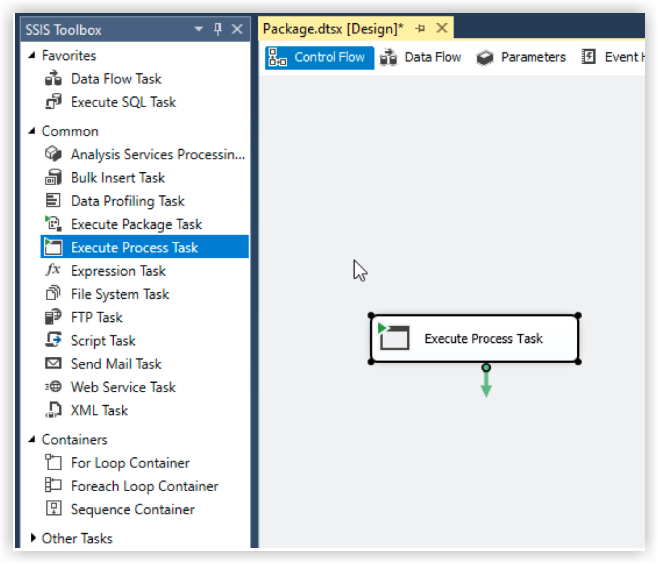
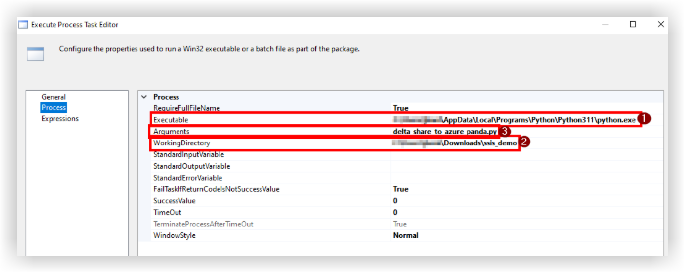
Double-cliquez sur « Exécuter la tâche de traitement » et accédez à l’onglet Processus.
Dans 'Exécutable', entrez le chemin d’accès à python.exe dans le dossier d’installation python.
Dans 'WorkingDirectory', entrez un chemin d’accès au dossier contenant le script que vous voulez exécuter (sans le nom du fichier de script).
Dans 'Arguments', entrez le nom du script 'delta_share_to_azure_panda.py'vous souhaitez exécuter avec le .py extension et enregistrez.
Cliquez sur le bouton « Démarrer » dans le volet supérieur :

Pendant l’exécution de la tâche, la sortie de la console Python s’affiche dans la fenêtre de la console externe.
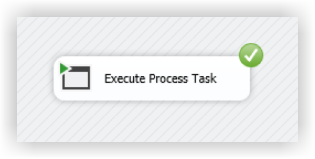
Une fois la tâche terminée, une coche verte s’affiche :