Configure an Expanded Adoption Report
Background
The Configuration page in the Expanded Adoption report provides various options to customize your report. You can filter usage data by specific tools, identify internal records using your company's email domains, and set a target record generation percentage for external collaborators.
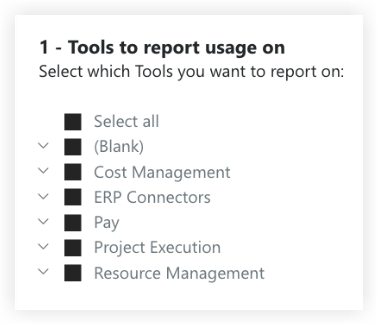
Tools to report usage on. Use this setting to filter the report by tools. It enables you to select which tools' data should be included in the report, providing comprehensive usage information for your analysis. For a list of available tools, see Expanded Adoption Report.
Company Name (Email Domains). Use this setting to select the email domain names of your company. It allows you to identify the records created by your company's employees. Records created by users not included in this list will be classified as collaborators.
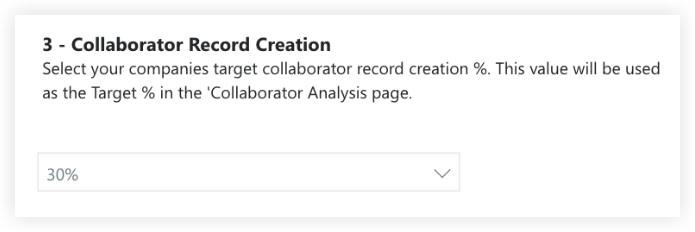
Collaborator Record Creation. Use this setting to set the percentage of overall records that you expect your collaborators or partners to generate across your company. The defined percentage will be used as the "Target %" in the Collaborator Analysis page.
Things to Consider
Required User Permissions:
'Admin' level permissions on the Company level 'Analytics' tool.
'Admin' level permissions for the Power BI Workspace.
Prerequisites:
Download the Procore Expanded Adoption report from the Company level Analytics tool. See Download an Analytics Report.
Before you can configure the "Company Name (Email Domains)" and "Collaborator Record Creation" settings on the Configuration page, you must first set up the report parameters for email domains and specify the target percentage for creating collaborator records in the Power BI Service.
Additional Information:
Parameter updates configured in the Power BI Service take effect after the next scheduled report refresh.
Set Up Report Parameters in Power BI Service
Log in to the Power BI service at https://app.powerbi.com/.
Navigate to the Settings for the Expanded Adoption dataset.
Expand the Parameters section.
Configure your company's email domains:
Go to the email domains field and replace the default values with your company's domain names.
Note: Format multiple domains as a semi-colon delimited list. For example, @yourcompany.com; @subsidiary.com.
Configure your collaborator target percentage:
Go to the Collaborator Record Creation Target % section.
Replace the default value with your desired percentage represented as a decimal.
Note: Enter decimals to represent percentages. For example, enter 0.5 to set the target percentage to 50%.
Click Apply.
Configure the Report Settings in Procore
Navigate to the Company level Analytics tool.
Open the Expanded Adoption report.
Click the Configuration tab or the settings
 icon.
icon.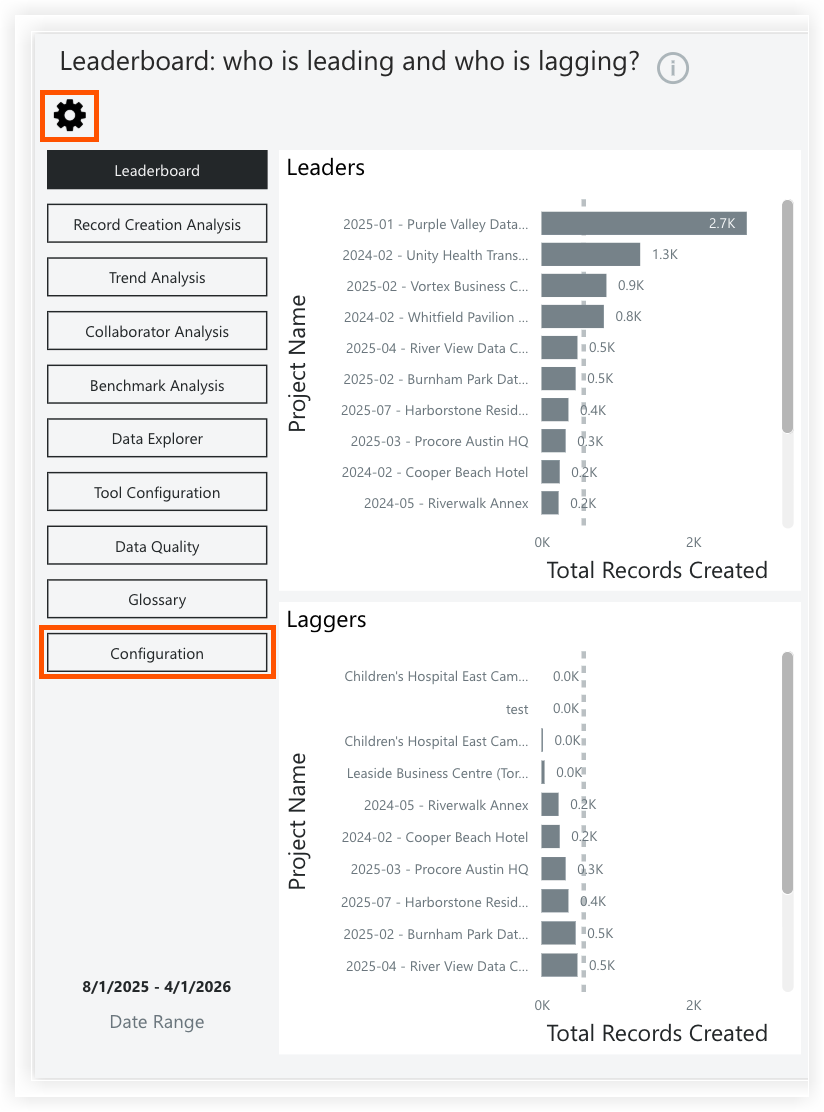
Configure the following report settings:
Tools to report usage on
Select all: Mark this checkbox to include usage data for all available tools in the report.
(Blank): Mark this checkbox to include usage data without an assigned tool category.
[Tool Name]: Expand the drop-down menus for tool categories (such as Cost Management or Project Execution) and mark the individual checkboxes next to the tool names.
Company Name (Email Domains)
Select your email domain names from the drop-down menu.
Note: You can view your Top Domains list here to see the total number of users and records for each domain.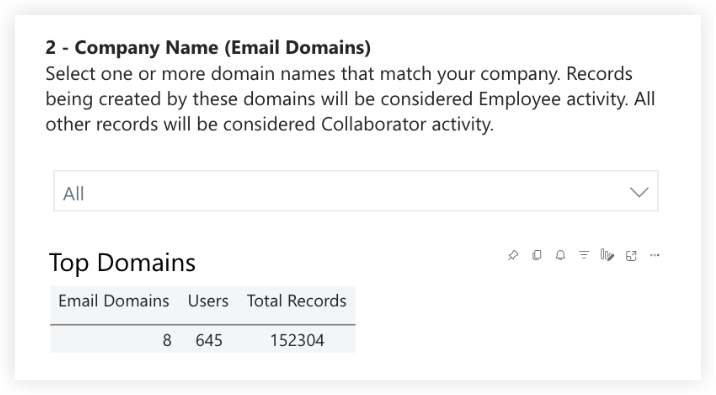
Collaborator Record Creation
Select your target percentage from the drop-down menu.
See Also
Loading related articles...