Modifier un modèle d’inspection au niveau projet
Éléments à prendre en compte
Informations complémentaires :
Lors de la modification d’un Niveau entreprise modèle d'inspection dans l’outil Niveau projet Inspections, seuls certains champs sont modifiables.
Les informations sur un Niveau entreprise modèle d'inspection mis à jour dans le Niveau projet ne sont pas synchronisées avec le Niveau entreprise source modèle d’inspection.
Les ensembles de réponses personnalisés ne peuvent être ajoutés qu’aux modèles au niveau entreprise. Voir Ajouter des ensembles de réponses personnalisés à un modèle d’inspections au niveau Entreprise.
Conditions préalables
Steps
Navigate to the Project level Inspections tool.
Click the Configure Settings
 icon.
icon.Click Templates.
À noterSi une bannière ou une icône d’avertissement apparaît dans votre liste de modèles d’inspection, certaines exigences de réponse (comme « Exiger une observation ») peuvent nécessiter un ajustement. Consultez cette FAQ pour obtenir de l’aide.
Click Edit next to the inspection template that you want to edit.
Note: An icon indicates a Company level Inspection template has been added to the project.
Under 'General Information', edit the applicable fields.
Note: If the template you are editing is a Company level Inspection template, certain fields cannot be edited in the Project level Inspections tool. These fields are indicated by an icon.
To edit existing sections and items on the template, click on the field you want to edit.
Note: Existing sections and items cannot be edited on Company level inspection templates in the Project level Inspections tool.
To delete a template section or item, click the trash bin icon to the right of the item heading.
To bulk edit your inspection items, mark the checkbox next to the # symbol to select all the sections of your inspection.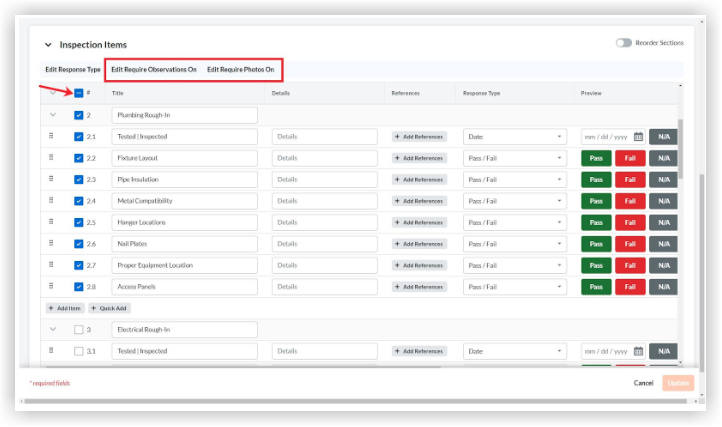
 . Pour réorganiser une section entière, cliquez sur l’icône de bascule
  à côté de Réorganiser les sections et faites glisser les sections de votre choix. Désactivez l’option Réorganiser les sections pour continuer à créer votre modèle.