Charger des renonciations de sous-traitant

  1. Accédez à l’outil Facturation au niveau projet.

  2. Cliquez sur l’icône Paramètres Icons Settings Gear. La page Paramètres de l’outil Facture s’ouvre.

  3. Cliquez sur l’onglet Sous-traitant .

  4. Localisez la facture à ouvrir et cliquez sur le lien # de facture.

  5. Cliquez sur l’onglet Droits de privilège.

     Important

    The options that you see on the Lien Rights tab are dependent on the Invoicing Settings set by the payor. For details, see Enable Sub-Tier Waivers on Project Invoices.

  6. Choisissez l’option qui correspond à la ou aux cartes que vous voyez dans l’onglet Droits de privilège :

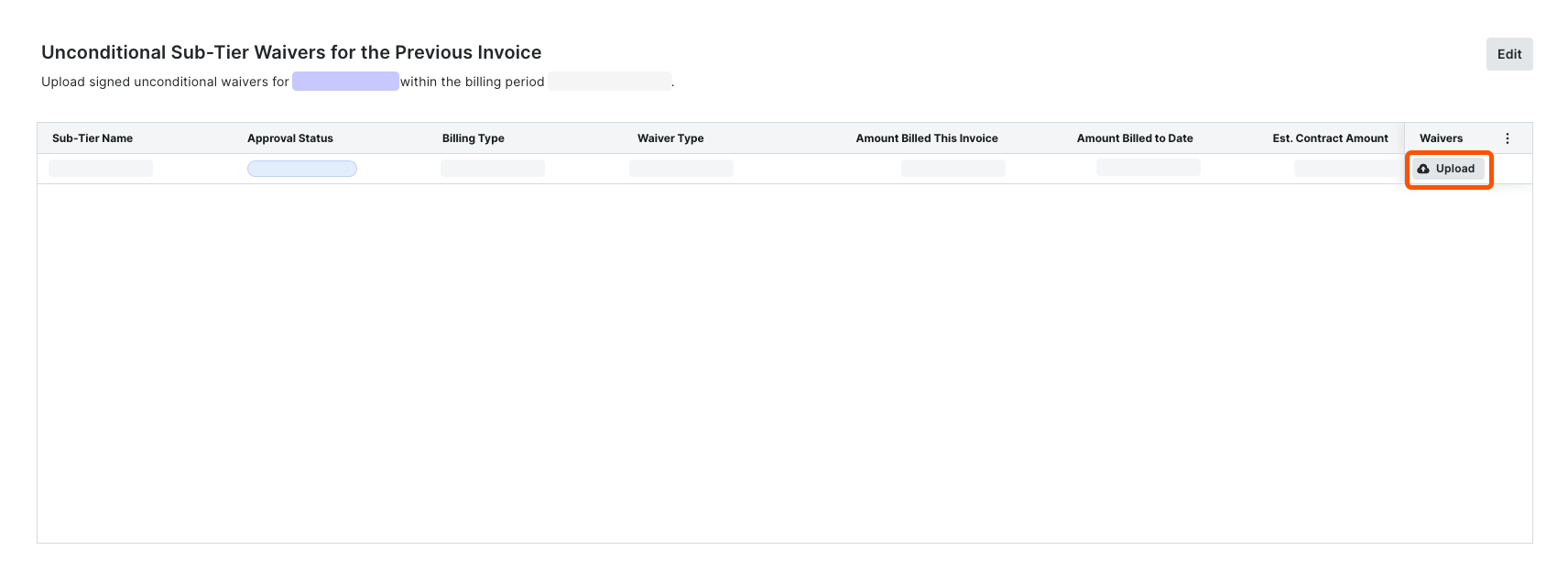
  • I see one card named 'Unconditional Sub-Tier Waivers for the Previous Invoice' Afficher/Masquer les détails

    • When you see this card, you must upload signed unconditional sub-tier waivers for the previous billing period. You must include these in your subcontractor invoice for the current Open billing period.

      Example

      If you are submitting a subcontractor invoice for the billing period 3/1/2024 - 3/31/2024, you can:

      • Collect signed unconditional lien waivers from your sub-tier contractors for the previous billing period (2/1/2023 - 2/29/2024).

      • Upload and submit the signed sub-tier waivers on your subcontractor invoice for 3/1/2024 - 3/31/2024.

      If you need to add sub-tiers to this card, complete the steps in Add Sub-Tiers to a Subcontractor Invoice.

      Upload Unconditional Sub Tier Waivers For The Previous Invoice

    1. Scroll to the Unconditional Sub-Tier Waivers for the Previous Invoice card.

    2. For each Sub-Tier Name, do the following:

      1. In the Waivers column, click Upload. This opens an attachment viewer. The Details panel is active.

      2. Under Attachment, do one of the following:

        • Click Attach File.

        • Drag and drop a file from your computer or network to the Attachment area. The file upload is complete when it appears in the viewer and a Download Icon Download Cloud icon appears in the top-left corner of the page. Until you submit it, the file's status is Not Submitted.

    3. Enter an amount in the Amount Billed This Invoice field.

    4. Choose a Billing Type option: Progress or Final.

    5. Click Submit. A GREEN success banner confirms the upload and the file status changes to Review Pending.

    6. Repeat these steps for each sub-tier subcontractor.

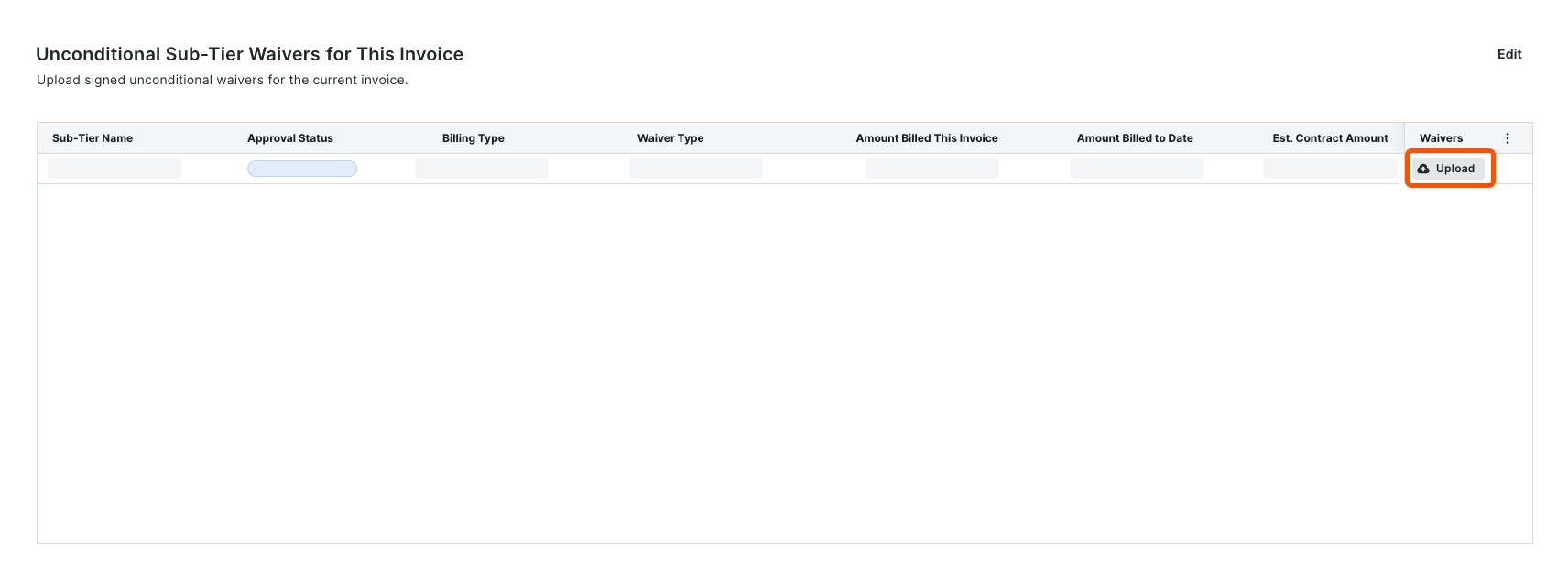
  • Je vois une carte nommée « Renonciations inconditionnelles de sous-niveau pour cette facture » Afficher/Masquer les détails

    • Lorsque vous voyez cette carte, vous devez charger des renonciations de sous-traitant inconditionnelles signées pour la période de facturation ouverte en cours. Vous devez les inclure dans votre facture de sous-traitant pour la période de facturation ouverte en cours.

      Example

      If you are an invoice contact submitting a subcontractor invoice for the billing period 3/1/2024 - 3/31/2024, you can:

      • Collect signed unconditional lien waivers from your sub-tier contractors for the current billing period (3/1/2024 - 3/31/2024).

      • Upload and submit the signed sub-tier waivers on your subcontractor invoice for 3/1/2024 - 3/31/2024.

      If you need to add sub-tiers to this card, complete the steps in Add Sub-Tiers to a Subcontractor Invoice.

      Upload Unconditional Sub Tier Waivers For This Invoice

    1. Faites défiler jusqu’à Renonciations inconditionnelles de sous-traitant pour cette facture carte.

    2. Pour chaque nom de sous-traitant-niveau, procédez comme suit :

      1. Dans la colonne Renonciations , cliquez sur Charger. Cela ouvre une pièce jointe visionneuse. Le panneau Détails est actif.

      2. Sous Pièce jointe, effectuez l’une des opérations suivantes :

        1. Cliquez sur Joindre un fichier.

        2. Glisser-déposer un fichier de votre ordinateur ou de votre réseau vers la superficie de la pièce jointe . Le chargement du fichier est terminé lorsqu’il apparaît dans la visionneuse et qu’une icône de téléchargement Icon Download Cloud apparaît dans le coin supérieur gauche de la page. Tant que vous ne l’avez pas envoyé, le statut du fichier est Non soumis.

      3. Saisissez un montant dans le chantier Montant facturé à cette facture.

      4. Choisissez une option de type de facturation : Progressive ou Finale.

    3. Cliquez sur Soumettre. Une bannière verte de réussite confirme le chargement et le statut du fichier devient Révision en attente.

    4. Répétez ces étapes pour chaque sous-traitant de niveau inférieur.
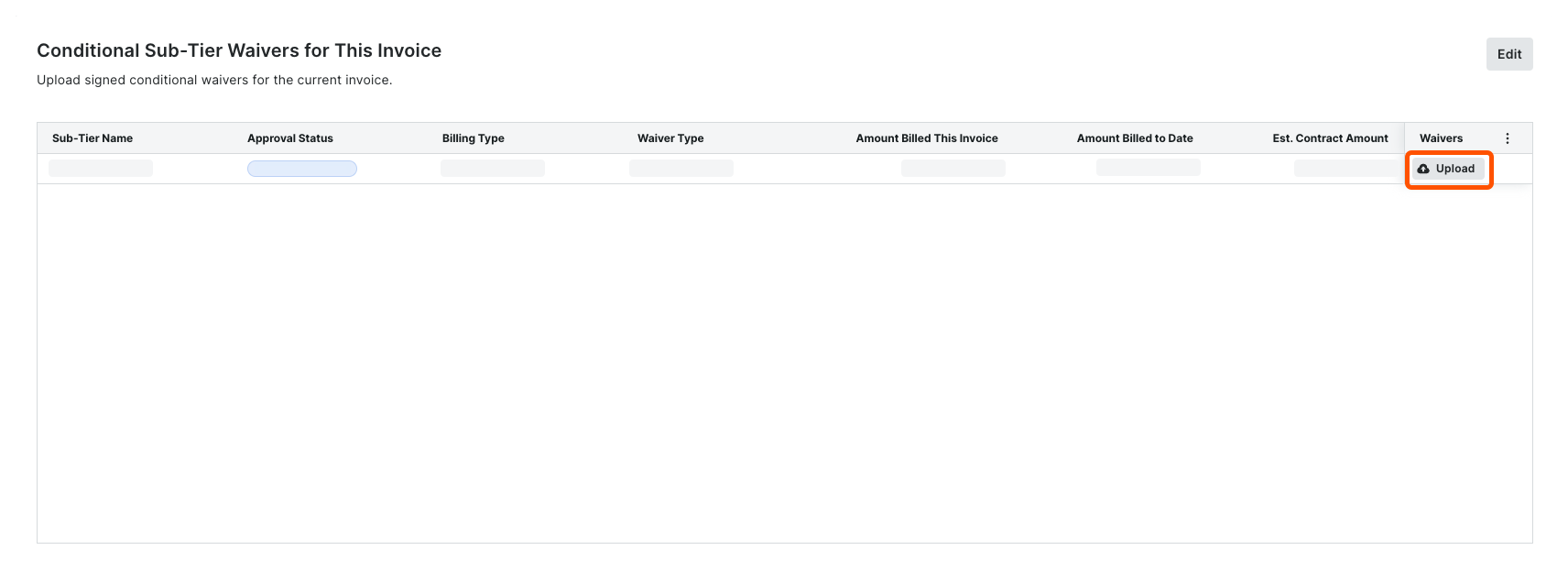
  • I see two cards named ‘Conditional Sub-Tier Waivers for this Invoice’ and 'Unconditional Sub-Tier Waivers for the Previous Invoice' Afficher/Masquer les détails

    • When you see both of these cards, invoice contacts must upload either signed conditional sub-tier waivers for the current Open billing period or signed unconditional sub-tier waivers for the previous invoice. You must include these in your subcontractor invoice for the current Open billing period.

      Example

      If you are submitting a subcontractor invoice for the billing period 3/1/2024 - 3/31/2024, you can:

      • Collect signed unconditional lien waivers from your sub-tier contractors for the Open billing period (3/1/2024 - 3/31/2024).

      • Collect signed unconditional lien waivers from your sub-tier contractors for the previous billing period (2/1/2024 - 2/29/2024).

      If you need to add sub-tiers to this card, complete the steps in Add Sub-Tiers to a Subcontractor Invoice.

      Upload Conditional Sub Tier Waivers For This Invoice

      Upload Unconditional Sub Tier Waivers For The Previous Invoice

    1. Scroll to the Conditional Sub-Tier Waivers for this Invoice card. For each Sub-Tier Name, do the following:

      1. In the Waivers column, click Upload. This opens an attachment viewer. The Details panel is active.

      2. Under Attachment:

        1. Click Attach File.

        2. Drag and drop a file from your computer or network to the Attachment area. The file upload is complete when it appears in the viewer and a Download Icon Download Cloud icon appears in the top-left corner of the page. Until you submit it, the file's status is Not Submitted.

      3. Enter an amount in the Amount Billed This Invoice field.

      4. Choose a Billing Type option: Progress or Final.

    2. Scroll to the Unconditional Sub-Tier Waivers for the Previous Invoice card. For each Sub-Tier Name, do the following:

      1. In the Waivers column, click Upload. This opens an attachment viewer. The Details panel is active.

      2. Under Attachment, do one of the following:

        • Click Attach File.

        • Drag and drop a signed waiver into the Attachment area. The file upload is complete when it appears in the viewer and a Download Icon Download Cloud icon appears in the top-left corner of the page. Until you submit it, the file's status is Not Submitted.

    3. Click Submit. A GREEN success banner confirms the upload and the file status changes to Review Pending.

    4. Repeat these steps for each sub-tier subcontractor.