Export a Punch List Item as a PDF
Things to Consider
Steps
Navigate to the project's Punch List tool.
Click Edit or View next to the punch list item you want to export as a PDF.
Click Export.
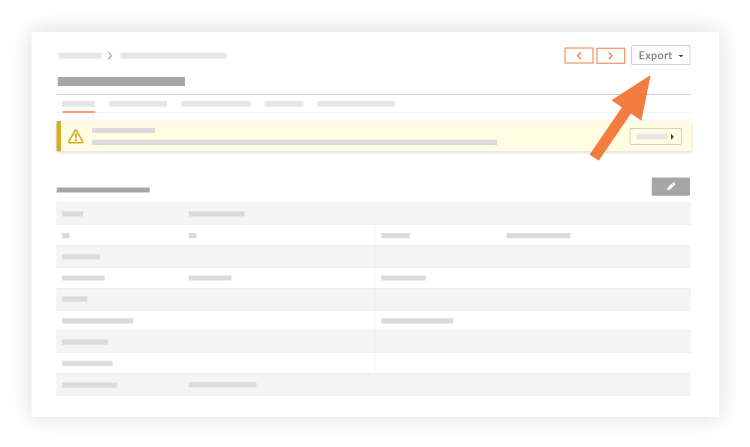
Click PDF.
A concise summary of the punch list item will download to your computer's default "Downloads" folder. The PDF will include the following information:
Title
Location
Status
Trade
Type
Priority
Private
Description
Custom Fields (if configured)
Linked Drawings
Attachments
Created By
Punch Item Manager
Final Approver
Date Created
Date Due
Ball in Court
Distribution List
Assignees
Date Notified
Date Ready for Review
Date Work Not Accepted
Date Resolved
Response
Activity Feed with Comments
See Also
Loading related articles...