View Coordination Issues
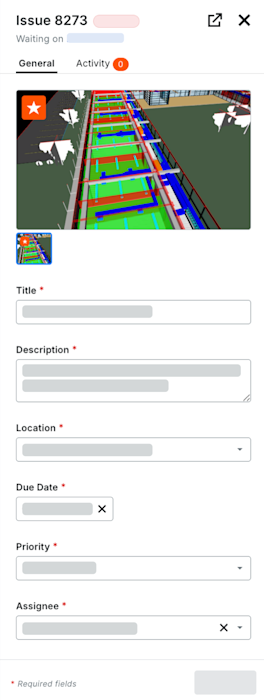
The Coordination Issues tool lets you view and manage design and construction issues in one central location. Accessing an issue's details helps project teams quickly identify critical context—such as model snapshots, location data, and assignment tracking—to ensure swift resolution and keep your project on schedule.
Things to Consider
Additional Information:
Some image attachments may include the option to view them in a map view based on the files' GPS coordinates. See Which Procore tools let me view digital image attachments in a map view?
Prerequisites
Tip
Did you know you can create, edit, and view coordination issues from a variety of different Procore tools and products? To learn more, see What are the different tools I can use to create a coordination issue?