Delete Saved Views in Capital Planning
Background
Delete saved views in Capital Planning to remove outdated or redundant table configurations from your views menu. Removing unused views reduces menu clutter and simplifies layout selection during financial forecasting sessions
Things to Consider
Required User Permissions:
'Admin' level permissions to delete 'Company Views'.
'Standard' level permissions or higher to delete 'Personal Views'.
Additional Information:
Deleting a saved view does not delete, alter, or reset any underlying project budget data or forecast values.
Deleted saved views cannot be restored and must be recreated manually if needed again.
Steps
Navigate to the company's Capital Planning tool.
Click the
 Views button.
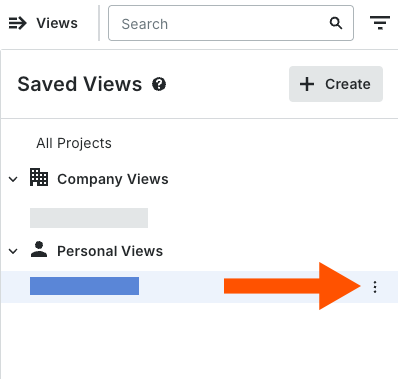
Select the Saved View you want to update.
Click the vertical ellipsis
 icon next to the relevant saved view.
Click Delete.
Click Delete again to confirm.

See Also
Loading related articles...