Add Customer Information in a Bid Board Project
Background
Maintaining accurate customer information helps you track project opportunities and manage stakeholder communications effectively. By documenting client details, you ensure that your team has the necessary information to follow up on bids throughout the preconstruction phase.
Things to Consider
Required User Permissions:
Bid Board Tool Permissions:
'Standard' or 'Admin' level users can create new estimating contacts and apply them to the Customer Information section.
'Read Only' level users can view and add existing contacts.
Note: While users can proceed through the steps to create or edit a new estimating contact, the system will block the action on the backend.
OR
Estimating Tool Permissions:
'Admin' level users can perform all actions and edits.
'Read Only' or 'Standard' level users have a read-only view, as editing fields are grayed out.
Additional Information:
When using the Estimating tool, this action is only available for projects that originated in the Bid Board tool. See Add a Bid Board Project to the Portfolio Tool.
Customer information can be updated at any time as project details or client requirements change.
Customer Information added to the Bid Board stays only within the Bid Board database.
Steps
Navigate to the Bid Board or Portfolio Planning tool.
OR
Navigate to the project's Estimating tool.Click the Overview tab.
In the 'Customer Information' section, click + Add Customer.
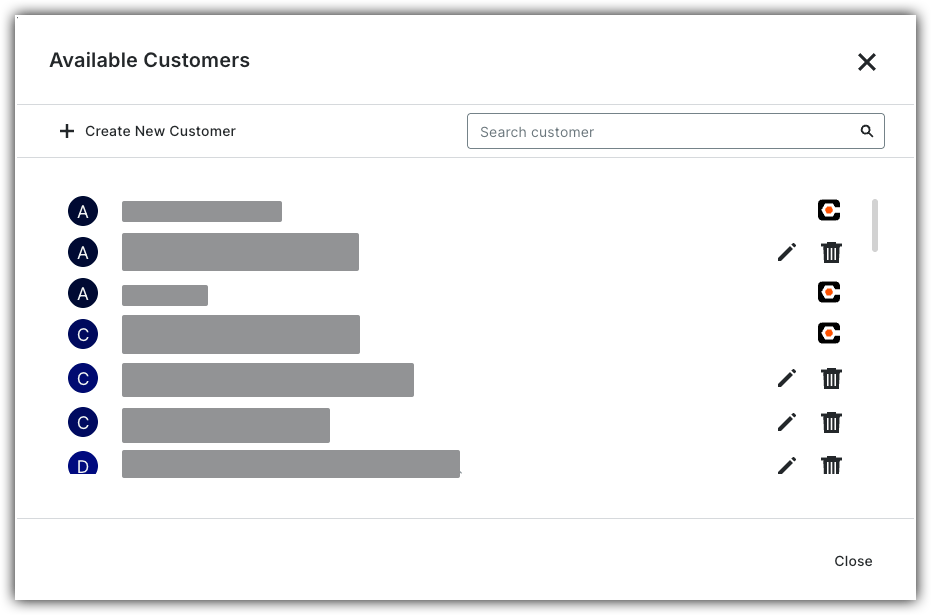
Select a customer contact from the list. Use the search bar if necessary.
Click Select to confirm the contact.
NoteYou can choose from two contact sources:
Procore Logo
 : Contacts come from the Directory and can only be edited there.
Pencil and Trash Can

 : Contacts were created in the Bid Board or Estimating tool and can be edited or deleted directly within those tools.

OR
Click + Create New Customer.
Enter relevant details.
Click Create.
Click + Add Address to add the project's address.
Enter information for the following:
Street
City
State
ZIP
Country
Click Save.