Initiate a Project Connection
Background
Only the users at the Receiving company account can initiate a connection. Sending company accounts can choose to automatically approve connections, or require review to manually accept or reject a Receiving project's request to connect. See Configure Connection Approval Settings. Projects can be disconnected by the Sending or Receiving account at any time.
Things to Consider
Additional Information:
Only the receiving company account can initiate a connection with a sending account's project.
Both Sending and Receiving projects support unlimited, independent project connections per tool. Disconnecting one project never affects the others.
For both sending and receiving accounts, users on the Connection Manager tool email distribution list are notified of new connections and connection requests (if review is required). See Connection Manager: Configure Advanced Settings.
GovCloud accounts will not be able to participate in a project connection.
If you are connecting to a project within the same company, look for the 'Current Company' section in the 'Sending Company' dropdown to select your company's name.
Steps
Navigate to the project's Connection Manager tool.
Click Add Connection.
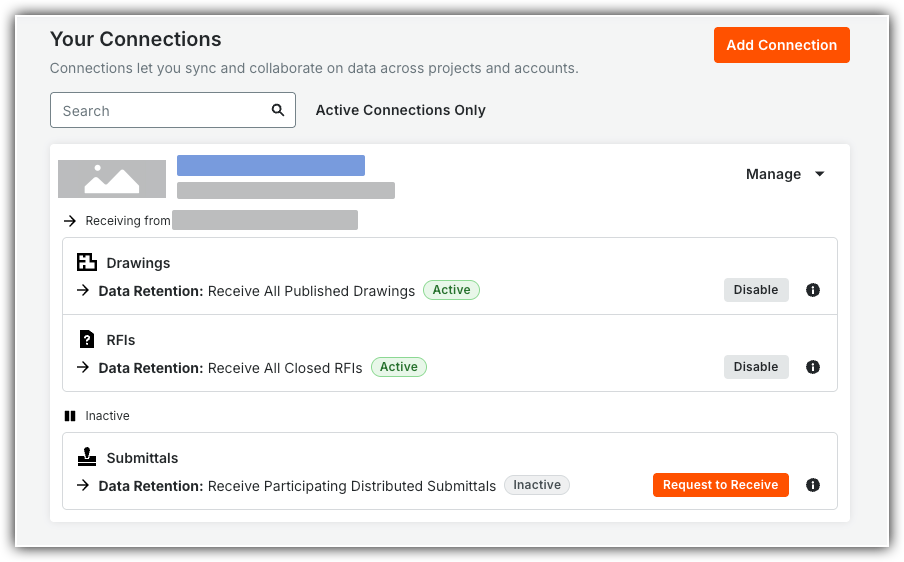
Select the sending company and project.
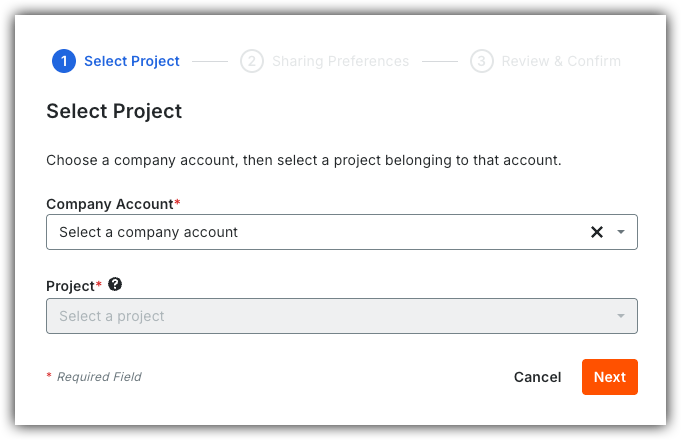
Click Next.
In the 'Sharing Preferences' step, mark the checkboxes for the tools you want to receive data from:
All Published Drawings
Receive All Published Drawings.
All Closed RFIs
Receive All Closed RFI.
Participating Distributed Submittals
All Distributed Submittals.
Participating Distributed Submittals Only.
Receive synced copies only when someone from your company is a: Submittal Manager, Submittal Reviewer, Workflow Participant, or Distribution List Member ).
Select at least one feature for this connection, then click Next.
Review the Considerations, then click Confirm Connection to initiate the project connection.
Information on Connection ApprovalsIf the sending company chose to automatically approve connections, your projects connect instantly.
If the sending company's settings require manual review, Procore sends a request to the sending company for review.


Repeat these steps for each additional project you want to connect.