Configure Geofences for Equipment
Things to Consider
You must use the polygon to create the geofence.
Prerequisites
The Maps tool must be enabled for the project.
Steps
1. Create a 'Site Boundary' Location
Create a Location Using the Create Button
Create a Sub Location Using Inline Creation
Create a Location Using the Create Button
Navigate to the project's Locations tool.
The Locations page appears with the List View by default.
Note: You can configure which table view and table column names you want to see in the Locations table.Click the Create button located at the top right side of the Locations page.
The New Location screen appears.Add information to the following fields:
Location Fields Show/Hide
Location Name: Enter an appropriate name for the a location you want to add (for example, Demo Area). This is a mandatory field.
Parent: Leave the field blank to create a Tier 1 location, or search for an existing location to make your entry a sub location (child).
Note: If you have already created a Tier location, this dropdown menu displays that location name.Code (optional): Enter an alphanumeric value to identify the location. This value must be unique for each project.
You can click the icon to toggle the visibility of the Code column.
Note: The Code field is used by Document Manager (available for select, non-US regions) to tag and name documents with a location.Type (optional): Select a pre-defined option from the dropdown menu or create a custom value to categorize your location.
The following pre-defined options are available in the Type dropdown menu:Site Boundary
Note: To set the boundary, you'll need to add the location to the map using the polygon to define the perimeter.Building
Level
Unit
Room
Zone
These pre-defined location types help in classification, filtering, improved navigation, and reporting. You can filter locations by Type in the Tree View or List View table. You can also add your own custom location types. You can create up to 100 custom location types with a limit of 255 characters each for a project. See Create and Manage Custom Location Types.
Click Save.
Create a Sub Location Using the Inline Creation
On the Locations page, hover over an existing location name in the Tree or List View table.
Click the vertical ellipsis
 icon.
icon.Select New Sub Location.
Blank fields are displayed for entering the values.Type the name of the sub location under the Location Name column and complete the other column values.
Hit Enter to add the changes.
2. Set the Site Boundary Geofence
Navigate to the project's Locations tool.
The Locations page appears with the List View by default.
Note: You can configure which table view and table column names you want to see in the Locations table.Click the map
 icon to switch to the map view.
Click Filters located above the list table.
A dropdown menu appears, displaying List and Location Type fields.From the List dropdown menu, select Unmapped.
You can see all unmapped locations in the list table.Select an unmapped location from the list table and click the add
 icon in the corresponding row under the Actions column.
Note: You can also use the add icon on the map pane to add locations to the map. To learn more, see Manage Locations on the Map. Select one of the following geometry shapes to assign it to the location:
Point: For specific spots (for example, a column or valve).
Path: For linear routes (for example, a pipeline or trench).
Polygon: For defined areas and site boundaries (for example, a room, slab, or zone).
When you select a shape, the Detail Card appears in the Map pane.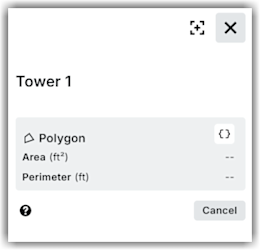
On the Map pane, do one of the following:
To draw, click on the map to place your points.
For Point: Click to place the point on the map.
The Details Card displays the coordinates in designated measurement units.For Path: Click to place vertices. Double-click or hit Enter to finish your drawing.
The Details Card displays the length in designated measurement units.For Polygons: Click to place vertices. Double-click or hit Enter to close the shape and finish your drawing. The Details Card displays the area and perimeter in designated measurement units..
When your drawing is complete, the geometry shape is saved and the location is added to the map automatically.NoteThe measurement unit system (metric or imperial) is determined by the user's browser region. Metric units are supported for specific regions. Perimeter and area cannot be entered manually; they are automatically calculated by the Locations tool based on the drawn geometry.
To enter coordinate values directly, click on the map to place your points.
Click the Enter Coordinates icon on the Details Card.
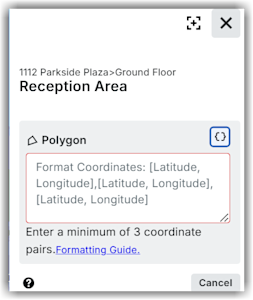
Enter the coordinate values in the text box. See GeoJSON Formatting Guide for Locations for detailed information.
Click outside the text box. The defined geometry shape is saved and the location is added to the map automatically.
To edit details of a geometry shape on the map pane, do the following:
Select the geometry shape for which you want to edit the details.
In the Details Card, click Edit.
Click the Enter Coordinates icon on the Details Card.
Modify the details in the text box.
Click Save in the text box.