Créer un instantané du budget

Bêta

Les périodes d’instantanés de statut de projet sont actuellement en version bêta. Pour activer cette fonctionnalité, rejoignez le programme bêta Budget : Périodes sur les instantanés de statut du projet via Procore Explore.

Fond

La fonction Créer un instantané de l’outil Budget permet aux utilisateurs de capturer des instantanés de l’onglet Budget ou Prévisions dans son état actuel. Une fois capturé, les utilisateurs peuvent immédiatement le visualiser ou l’exporter au format CSV ou PDF. Pour en savoir plus sur les différents types d’instantanés disponibles, voir Quelle est la différence entre un instantané ad hoc et un instantané de statut de projet ?

Éléments à prendre en compte

  • Autorisations utilisateur requises :

    • Pour créer un instantané, autorisations de niveau « Standard » ou supérieures dans l’outil Budget du projet.

    • Pour afficher tous les instantanés créés par n’importe quel utilisateur, autorisations de niveau « Lecture seule » ou supérieures dans l’outil Budget du projet.

Conditions préalables

Escalier

Create a Snapshot from the Budget Tab

Users can create a Project Status Snapshot or an Ad Hoc Snapshot from the Budget tab. Only Project Status Snapshots are saved.

Le saviez-vous ?

Vous pouvez désormais modifier le nom, le type et la description d’un instantané directement à partir de la bannière du budget sans avoir à le supprimer et à le recréer. Pour en savoir plus, voir Modifier un Budget Instantané.

  1. Navigate to the project's Budget tool.

  2. Click the Budget tab.

  3. Click + Create and select Snapshot.
    This opens the Create Snapshot window.
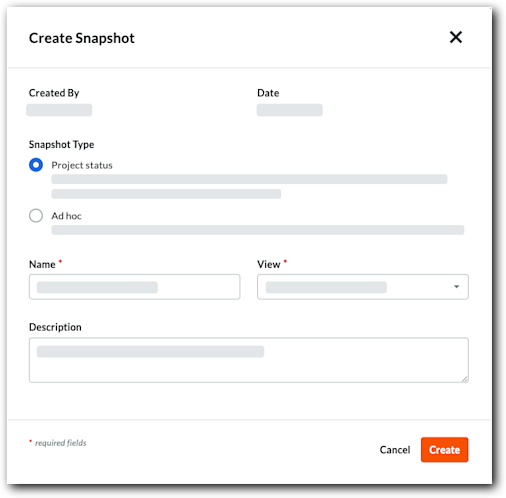
    Create Project Status Snapshot

  4. In the Create Snapshot modal, configure the following:

    • Snapshot Type. Select one of the following options:

      • Project status. Choose this option for official reporting, such as a monthly report that needs review.

      • Ad hoc. Choose this option for a simple snapshot.

    • Name. Enter a name for the snapshot.

    • Status. Select a status from the drop-down list.
      Note: By default, the default status is selected.

    • View. Select a budget view for the snapshot.

    • Beta Feature Period. Search for or select an open financial period from the drop-down list.
      Note: The Period field is available only when financial periods are enabled.

    • Description. Enter a description of the snapshot.

  5. Click Create.
    When complete, the Snapshot Created banner appears at the top of the page.
    View Snapshot Data

  6. Beta Feature (Optional for Project Status Snapshots) If the selected period is already assigned to another snapshot, a confirmation dialog will appear:

    1. Click Reassign period to confirm.
      Note: This transfers the financial period to your new snapshot and converts the previously assigned snapshot into an Ad Hoc snapshot.

Create a Snapshot from the Forecasting Tab

Users can create an ad hoc snapshot from the Forecasting tab.

  1. Navigate to the project's Budget tool.

  2. Click the Forecasting tab.

  3. Click Create Snapshot.
    This opens the Create Snapshot window.
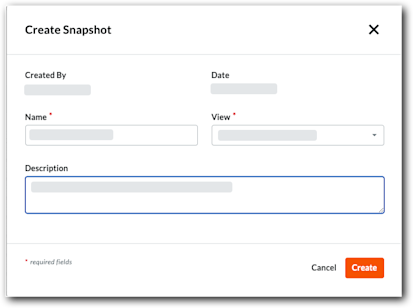
    Create Forecast Ad Hoc Snapshot

  4. Enter the snapshot information:

    • Name. Enter a name for the snapshot.

    • View. Select a budget view for the snapshot.

    • Description. Enter a description of the snapshot.

  5. Click Create.
    When complete, the Snapshot Created banner appears at the top of the page.

Cliquez sur Étape suivante.

Voir aussi

Chargement des articles connexes...