Import a Timecard into a T&M Ticket
Things to Consider
Prerequisites
Steps
Import a Timecard into an Existing T&M Ticket
Import a Timecard into a New T&M Ticket
Import a Timecard into an Existing T&M Ticket
Navigate to the project's T&M Tickets tool.
Click Edit next to the T&M Ticket you want to import a timecard into.
Navigate to the Labor section.
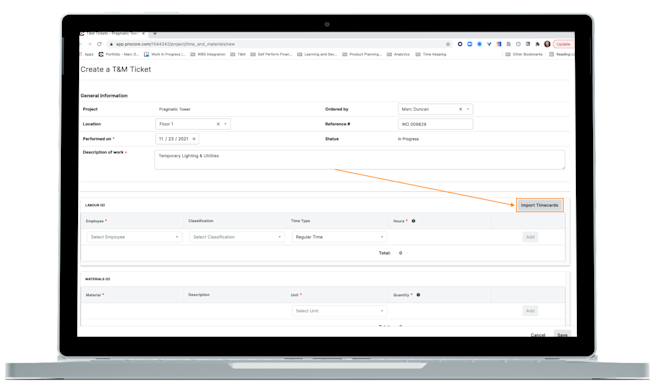
Click Import Timecards.
Select the date of the timecards you want to import.
Select the timecards you want to import.
Tip: You can search for timecards by employee name or filter the timecards by Cost Code.Click Import Timecards.
Import a Timecard into a New T&M Ticket
Navigate to the project's T&M Tickets tool.
Click Create.
Fill out the General Information for your T&M Ticket.
Navigate to the Labor section.
Click Import Timecards.
Select the date of the timecards you want to import.
Select the timecards you want to import.
Tip: You can search for timecards by employee name or filter the timecards by Cost Code.Click Import Timecards.
See Also
Loading related articles...