View a Project 360 Report

In Beta

Company Administrators can enable the 360 Project Execution Reporting for Non-Admin Users in Procore Explore. (US 2 | UK)

With this beta, your data access is determined by your existing tool permissions. You can create and view detailed Project and Company 360 Reports using all the data you already have permission to see—no tool-level admin access is required. This applies only to data within the Project Execution Dataset.
Things to Consider

  • Required User Permissions:

    • For company reports, 'Admin' level permissions on the Company Directory.

    • To view project reports, you need 'Standard' permissions or higher on 360 Reporting and access to the data used for the column. See How do 360 Reporting permissions work?

  • Additional Information:

    • To view a report created by another user, the report will first need to be shared with you by its creator.

    • 360 Reporting data may take up to thirty (30) minutes to update once it is created in Procore.

Steps

  1. Navigate to the 360 Reporting tool at the Company or Project level.

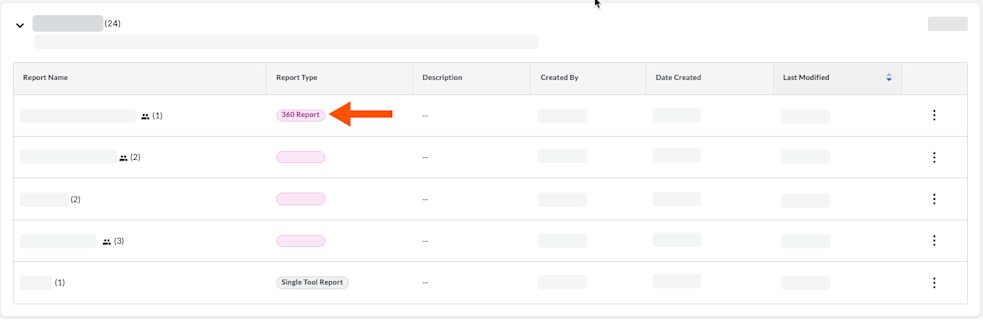
  2. From the Reports tab, click a page link to find your 360 Report's card.

  3. Click a 360 Report to open it. An icon in the Report Type column identifies 360 Reports.

    Reports Card

  4. (Optional) Click Filters. Choose the filters from the Add Filters list.

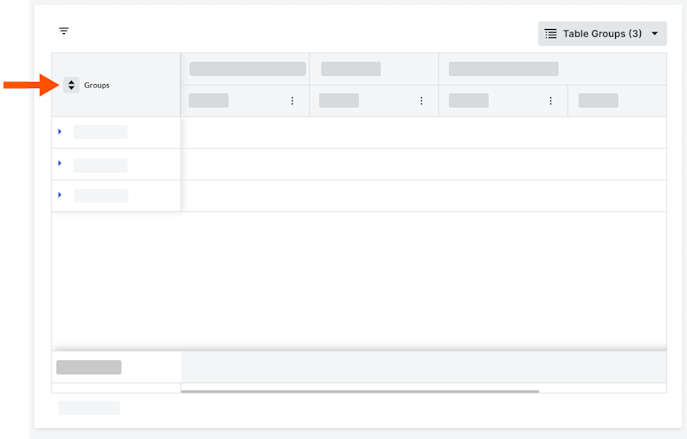
  5. (Optional) If the report contains any groups and fewer than 1000 rows of data, click the icon to expand and collapse the table groups. If your report exceeds 1000 rows of data, this feature is disabled.

    Expand Groups

See Also

Loading related articles...