View the Project Map
Background
You can view the following in the Project Map tool:
Associated tool items as Project Items in the List view.
Selected items as pins or thumbnails on the map.
Status-based pills in the tool list and color pins on the map for each item, including a map legend.
The Details Card on the map displaying the selected item's summary.
Filters to search for the required items in the tool list and on the map.
Base Styles and Preferences settings on the map.
Options to find an item on the map, view an item in detail, edit an item, move an item pin, and remove an item pin.
Things to Consider
Prerequisites
Enable the Project Map beta in Procore Explore.
Steps
Navigate to the Maps from the ‘Project Tools’ or 'All Tools' menu.
This launches the Maps tool and takes you to its main page. The Maps main page shows the List View and the Map.In the List view on your left side, do the following:
Select the
 icon next to the tool you want to see items for.
Note: To view the associated tool items, you must have 'Read Only' level permissions or higher to the relevant tool.
You can view the items for the following tools:Assets
Incidents
Inspections
Observations
Locations
Photos
Punch List
RFIs
Locate the item you want to see. See Filter the Map.
View the item on the map, including its summary in the Details Card. See View Items on the Map.
To add unmapped tool items to the map, use the
 icon (if available). See Add Item Pin to the Map for more information.
Use the following to view item status at a glance across tools - Observations, Inspections, Punch List, Incidents, and RFIs:
Status-based pills: Available in the List view and the Details Card on the map providing consistent status context throughout the user experience.
Color-coded map pins: Available on the map. Each pin updates its color when an item’s status changes or the map refreshes. You can also view a status pin for clustered items.
This helps teams quickly identify open work, spot areas that need attention, and de-emphasize completed items without opening each record.Map legend: Available on the map. It explains status colors associated with each tool.
In the map view on your right side, do the following:
Click the item name in the List view or the map pin or thumbnail on the map to see an item summary.
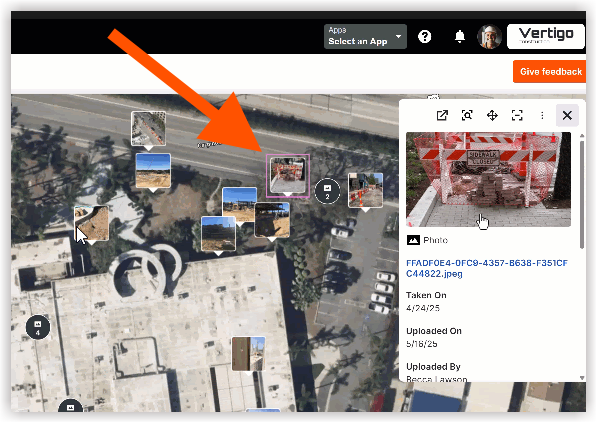
In the item summary, click the item title or the
 icon, to view the item's details in a new tab. See View Items on the Map.
 View object or item labels directly on the map. For Basemap Style and Preferences settings, See View Items on the Map.
See Also
Loading related articles...