Welcome to our new support center! Here, you will find answers to all your questions about Procore products and features—more easily than ever before. This is now the only support site for Procore. The previous site (support.procore.com) is now obsolete and will no longer be updated.
An Owner Invoice is an application for payment, typically submitted by a General Contractor (GC) or Construction Manager (CM) to an Owner to provide an itemized record of the amount due for work performed. In Procore, an owner invoice is equivalent to an accounts receivable invoice.
Things to Consider
Required User Permissions:
'Admin' level permissions on the project's Prime Contracts tool.
Notes
To view the Detail tab on an owner invoice, 'Read Only' or 'Standard' level permissions on the project's Prime Contracts tool with the 'View Owner Invoice Detail' granular permission enabled on your permission template.
Locate the contract to work with. Then click its Number link.
Click the Create Invoice button.
Note
If you've already created the invoice for current billing period, click the Invoices tab. Next, click the Edit button to open it.
In the 'New Invoice (Payment Application)' page, do the following:
Commitment Billing Period Select the current billing period from the drop-down list. To learn how to create a billing period, see Create Billing Periods.
Invoice # Procore automatically assigns invoice numbers in ascending numerical order, starting with one (1). The number entered in this field does NOT affect Procore's default invoice numbering scheme and you can change it as you want.
Period Start Procore automatically populates this field with the selected billing period's start date.
Period End Procore automatically populates this field with the selected billing period's end date.
Billing Date Click the calendar control and choose a billing date for the invoice.
Percent Complete If previous invoices exist, this field shows the percentage of work completed.
Attachments Click Attach Files or drag-and-drop any files to associated with the invoice in the attachments area.
Click the Create button.
In the Do You Want to Pre-Fill the Owner Invoice? message, review the list of items that Procore will add to the invoice and compile an invoice backup from. Choose one (1) of these options to proceed:
Cancel. Click this button to cancel invoice creation.
No Thanks. Click this button if you want to manually perform the data entry on the invoice.
If your Procore user account has been granted the required user permissions for viewing the Detail tab, you can update the invoice line items:
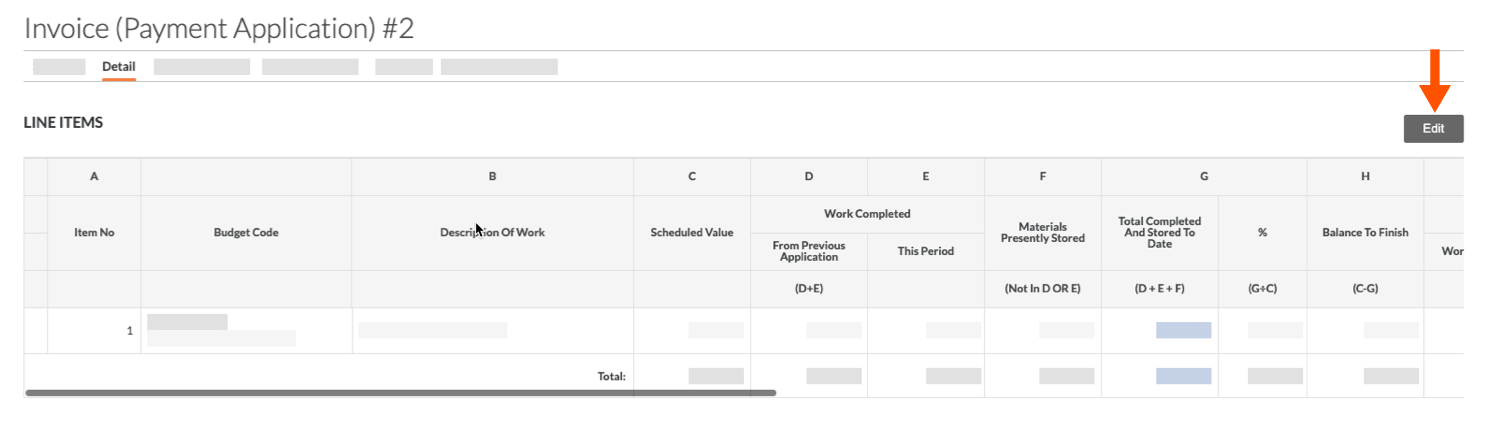
Click the Detail tab.
Click the Edit button.
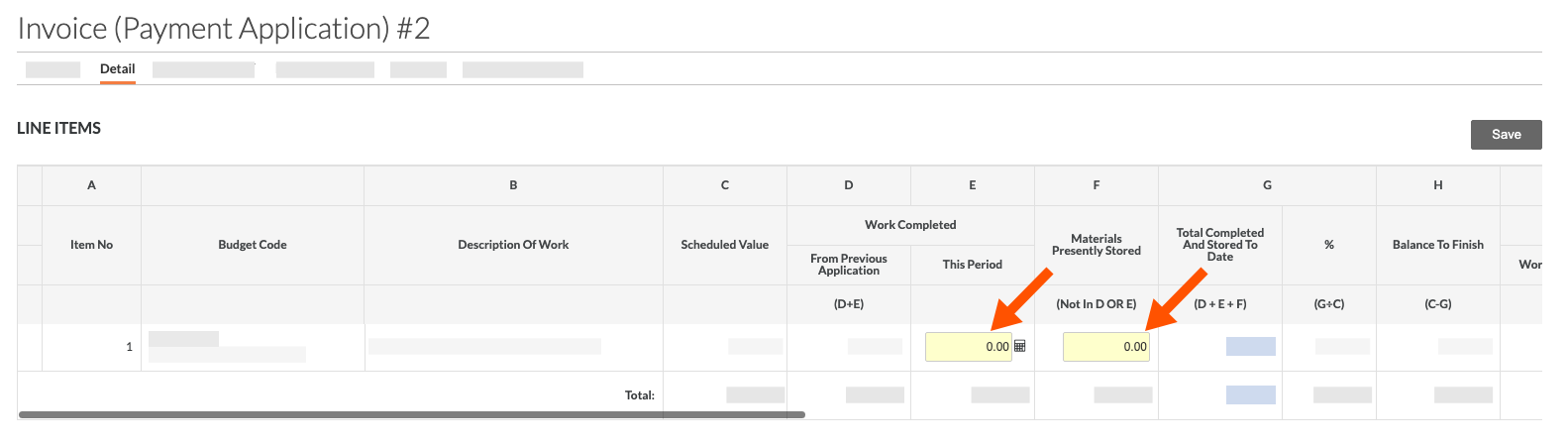
Enter data only in the YELLOW boxes:
Work Completed: This Period If you confirmed the option to automatically complete the owner invoice's amounts. See How does Procore automatically complete amounts on an upstream invoice?, the values from the 'Work Completed: This Period' column from any related subcontractor invoices and any direct costs amounts are included in this column.
Materials Presently Stored If you confirmed the option to automatically complete the owner invoice's amounts. See How does Procore automatically complete amounts on an upstream invoice?, the values from the 'Materials Presently Stored' column in any related subcontractor invoices are included in this column.
Work Retainage Retained this Period Enter a percentage or dollar amount for work retainage retained this period. You can also set retainage on all line items by entering a value into the right sidebar and clicking Set.
Materials Retainage Retained this Period Enter a percentage or dollar amount for materials retainage retained this period. You can also set retainage on all line items by entering a value into the right sidebar and clicking Set.
Work Retainage $ Released This Period Enter a dollar amount of work retainage released this period.
Scroll to the bottom of the invoice and continue with the next step.
Add Approved Change Orders to the Invoice
If a change order is in the 'Approved' status and has line items that impact an invoice, the system lists the change order in the 'Approved Prime Contract Change Orders to Add to this Owner Invoice' table. If you want to add the change order to the invoice now, follow these steps:
Scroll to the bottom of the invoice's Detail tab.
Review the change order number, title, and amount.
Optional: In the Add to Owner Invoice As column, click the Add to Invoice button. A GREEN banner confirms the invoice was added successfully.
Continue with the next step.
Notes
The change order detail updates the appropriate line items on the invoice. You have these options:
To view the change order detail, follow the steps in Export an Owner Invoice. The PDF export file shows the Net Change by Change Orders value on line 2 and the Change Order Summary table at the bottom of the Contractor's Application for Payment.
To view the updates on the prime contract, navigate to the prime contract, click the General tab and scroll down to the Contract Summary Report.