Search the Company Portfolio for Projects

New Version Available
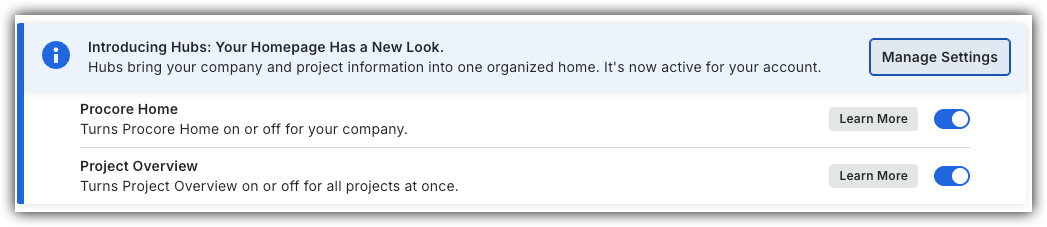
Procore Home has replaced the legacy Company Portfolio page and is enabled by default. Learn more about the difference between the legacy Company Portfolio page and the new Procore Home.

Company Administrators can switch between the new Procore Home and legacy Company Portfolio by following the below steps:

  1. Open the Procore Home or Company Portfolio tool.

  2. Locate the Introducing Hubs banner.

  3. Select Manage Settings on the banner.

  4. Toggle Procore Home ON Icon Toggle On or OFFIcon Toggle Offto switch between the new view and the legacy view.

However, later this year Company Portfolio will be sunset and will no longer be available.

Procore Hubs announcement banner with Manage Settings button and toggles for Procore Home and Project Overview features.

Things to Consider

  • Required User Permissions to the company's Procore Home tool.

  • Additional Information:

    • Supported Views:

      • Projects

      • Executive Dashboard

      • Financial Views: Budget Variance, Contract Variance, Contract Summary, and Commitment Summary.

    • The icons next to a project name indicate its status or type:

      • Project Template: The project is used as a template.

      • Test Project: The project is used for testing.

      • Inactive Project: The project is currently inactive.

      • ERP Integrated: The project integrates with your accounting system.

      • Connected Project: The project connects to another project via Connection Manager.

Steps

  1. Navigate to the company's Portfolio tool or Home.

  2. Click the search box and enter a keyword to search the following fields:

    • Address

    • City

    • Phone

    • Project Name. Project name.

    • Project Number. This corresponds to the job number.

    • State

    • ZIP Code

Legacy
  1. Navigate to the project's Portfolio tool.

  2. Click one of the supported views (e.g., Projects, Executive Dashboard, Financial Views).

  3. Enter a keyword or phrase in the Search box.

  4. Click Search to search the following fields:

    • Address

    • City

    • Phone

    • Project Name. Project name.

    • Project Number. This corresponds to the job number.

    • State

    • ZIP Code

See Also

Loading related articles...