Customize the Column Display in the Inspections Tool

Background

Beta

A modernized list view is now available for the Inspections tool! This feature offers enhanced filtering, customizable table columns, and saved views. To try the new interface, toggle Beta Items List to the ON position at the top of the Inspections list.

You can customize the columns on the project's Inspections List view in order to show the data that is most relevant to you and your project.
Things to Consider

Prerequisites

Steps

  1. Navigate to the Project level Inspections tool. Note: Make sure the List view is selected.

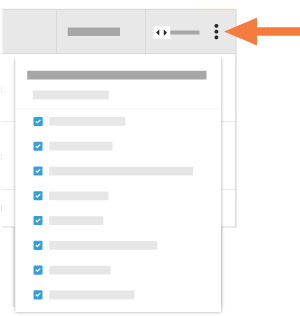
  2. In the display table, click the vertical ellipsis (⋮) icon.
    Customize Table Options Menu

  3. Choose from the following options:

    • Show a Column

    • Hide a Column

    • Reorder the Columns
      Grab the column name by the dots (⁞⁞) and drag and drop the column name to the desired location in the list.

    • Restore the Default Settings

See Also

Loading related articles...