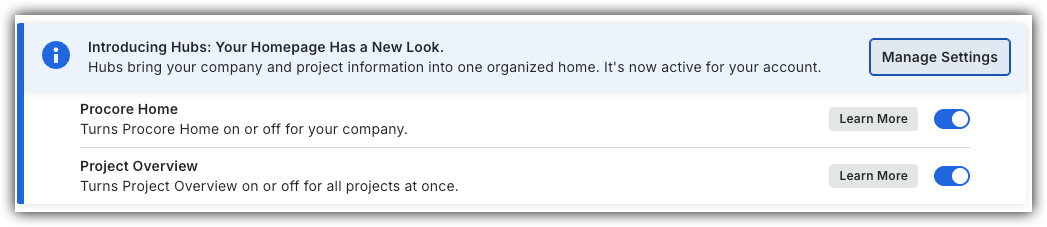
To return to the legacy Project Home, Company Administrators can navigate to the Company Portfolio / ProcoreHome tool, click Manage Settings and toggle Project OverviewOFF.
However, later this year it will be sunset and will no longer be available. If your company reverted to the legacy Project Home experience, Company Administrators can re-enable the Project Overview by switching Project Overview toggle ON.
Background
You can turn the display of the Project Weather widget on the sidebar of the Project Home page ON or OFF.
Things to Consider
Required User Permission:
'Admin' level permission on the project's Home page.
Steps
Navigate to the Project Overview.
Click the Overview tab's vertical ellipsis.
Align Cards
Click Actions and select Align Cards to remove layout gaps in the current view.
Discard Changes
Click Actions and select Discard Changes to revert any updates made in the current edit session.
Remove Card
Click the delete icon for each card you want to remove.
Click Remove Card to confirm.
Rename Overview Tab
Click the Overview tab's vertical ellipsis and click Rename.
Set to Template
Click Actions and select Set to Template to apply the latest Procore template layout for the Project Overview. This will cause deleted cards to appear again as part of the template layout.
Click Save.
Project Home (Legacy)
Navigate to the project's Home page.
Click Configure Settings.
Choose from these options:
To show the Project Weather widget on the Home page, place a checkmark in the Show Current Weather Conditions box.
To hide the Project Weather widget from the Home page, remove the checkmark.
 OFF.
OFF.
 ON.
ON. .
.
 icon for each card you want to remove.
 .
.