Add ERP Standard Cost Codes to a Project
Background
Adding ERP synced cost codes to your Procore project ensures data consistency across platforms. This action is required to successfully sync your project financial data with your accounting system.
Things to Consider
Required User Permissions on the project's Admin tool.
Steps
Navigate to the Project level Admin tool.
Under 'Project Settings', click the Work Breakdown Structure link.
In the 'Segments' list, click the Cost Codes link.
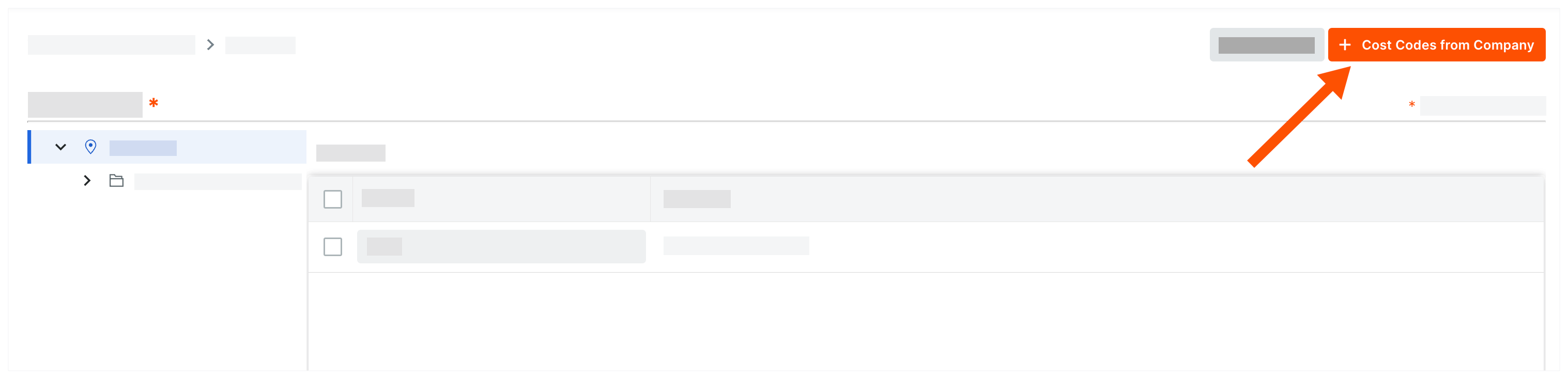
Click Cost Codes from Company.
In the 'Add Cost Codes to this Project' window, choose from these options:
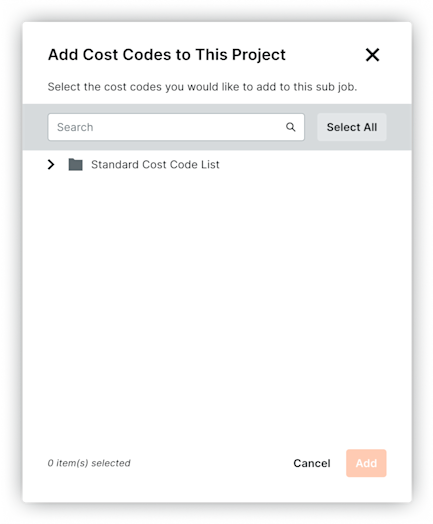
To copy all company cost codes to the project, click Select All.
To select specific cost codes, type a code in the Search Cost Codes box and highlight the codes to add.
To choose cost codes, expand the desired segment items and highlight the segment items to copy.
Click Add.
See Also
Loading related articles...