Accept or Reject Cost Codes for Export to QuickBooks® Desktop
Background
After adding cost codes as segment items in the Work Breakdown Structure area of the Company level Admin tool, send the cost codes to the company level ERP Integrations tool. An In Procore, an Accounting Approver is an individual with the authority to accept and reject Procore data for export to an integrated ERP system. Accounting approvers can unlink several item types, such as commitments, commitment change orders, prime contract change orders, and subcontractor invoices, that have been synced between Procore and an integrated ERP system. See Which ERP Integrations are supported by Procore?
Things to Consider
Required User Permissions on the company's ERP Integrations tool.
Additional Information:
Syncing Procore cost codes with QuickBooks Items of any other type (inventory part, other charge, etc.) or directly with G/L Accounts from your QuickBooks® Desktop Chart of Accounts is NOT supported.
Procore cost codes can only be synced with QuickBooks® Desktop items designated with the type 'Service.'
Cost Types are NOT supported. All cost type fields within Procore will display as "Other" on QuickBooks® Desktop integrated Projects. The "Other" cost type is a placeholder within Procore only, and is not transferred to QuickBooks® Desktop in any way.
The integration does not write to the "Class" field in QuickBooks® Desktop.
Project-Specific cost codes are NOT supported. There is (1) Company Level cost code list for use with all QuickBooks® Desktop-integrated projects.
New cost codes added to the Company Level cost code list must be added to the project's WBS to sync with accounting. Additionally, these codes must be exported to QuickBooks® Desktop.
Sub Jobs are NOT supported.
Custom WBS segments are NOT supported.
Cost codes must not exceed 96 characters due to QuickBooks® Desktop's 'Transaction Detail' reporting limitations.
Steps
Navigate to the company's ERP Integrations tool.
Click the Standard Cost Codes tab.
Under Filter Standard Cost Codes By, make sure Ready to Export is selected.
Review any cost code(s) and descriptions in the 'ERP Cost Code List'.
This list only shows unsynced cost codes.
Accept the Cost Code
Select an option in the following drop-down lists:
General Ledger Account - Income. Choose the appropriate income account for each cost code. An income account is used for revenues, expenses, gains, and losses.
General Ledger Account - Expense (Optional). If your company uses separate expense accounts, choose one from this list.
Note: Any changes you make will automatically be saved.

Click Export Cost Codes.

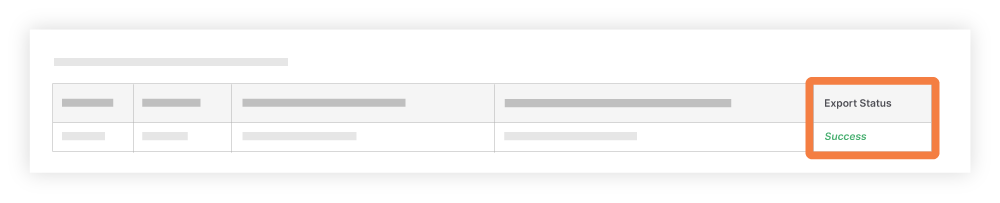
The 'Export Status' column in the ERP Cost Code list shows the status of your export. It may take a few minutes to export your codes. When the export is complete, the column reads 'Success.'


Reject the Cost Code
Click Reject All.

The system removes the cost codes from the "Ready to Export" list in the ERP Integrations tool. A YELLOW banner appears at the top of the page to confirm that the code(s) have been removed.

See Also
Loading related articles...