About the Modernized Change Orders Experience
Background
The Change Orders tool in Procore has been updated with a modern interface to improve how project change orders are managed, filtered, and tracked. This update offers a streamlined experience for reviewing financial data, managing configuration options, and performing bulk or row-level operations.
Things to Consider
Access to this new experience depends on whether your project is configured as a first-tier, two-tier, or three-tier system.
Terminology Variations:
In a multi-tier project, the main list displays potential change orders (PCOs), which represent the lowest tier of change orders.
In a first-tier or single-tier project, you will see a list of standard change orders (or change order packages).
The Send to ERP action is only available for ERP-integrated change orders that are in the Approved status.
Note: Draft change orders cannot be sent to ERP.You cannot delete a change order if it is currently included in a change order request (COR) or a change order package. It must be unlinked first.
Prerequisites
You must be enrolled in the new Change Orders experience to be automatically redirected to the modernized interface.
Required User Permissions:
'Read Only' level permissions or higher to view change orders
'Admin' level permissions to edit, delete, or manage ERP integrations.
Steps
Navigate the Change Orders Tool
Navigate to the project's Change Orders tool.
Note: By default, you will land on the Prime Contracts Change Orders tab, but you can switch to the Commitments Change Orders tab if needed.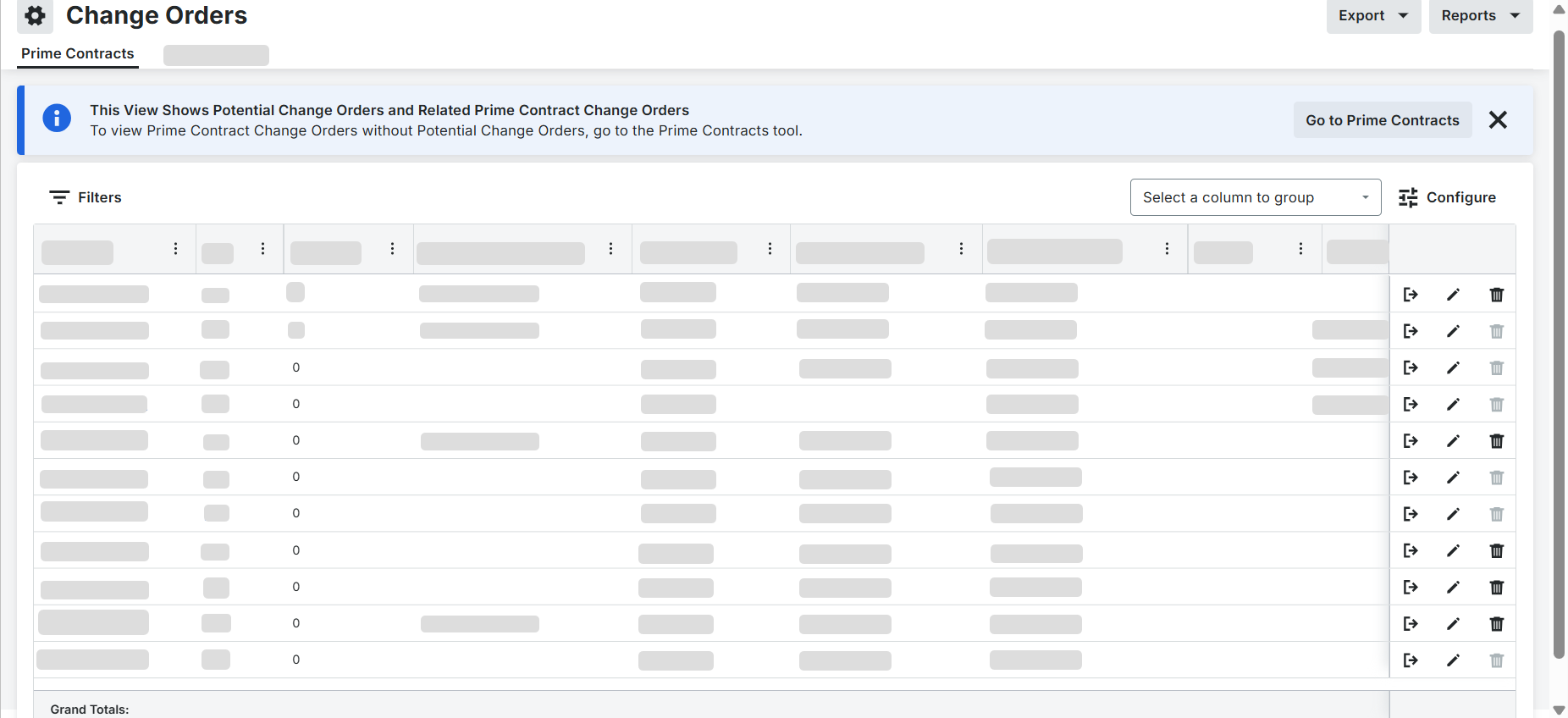
Review the banner at the top of the page to verify which tier of change orders you are viewing.

Export the Change Orders List to PDF
Click Export.
Click PDF.
Wait for the system to generate the file. The PDF will automatically open in a new window with a comprehensive list of everything currently visible in your table view.
Filter and Configure the List View
Click the Filters menu to filter your items by criteria such as status. For example: 'Approved' or 'Draft' or executed status such as 'Yes' or 'No'.
Click Apply to update the list view.
Click the configuration panel icon to customize your table columns.
Mark or clear the checkboxes next to column names such as Workflows, ERP Status, or Executed to show or hide them.
Optional: Click a column header to sort your data in ascending or descending order.
Create a Change Order from Change Event Line Items
Navigate to the project's Change Events tool.
Mark the checkboxes next to the line items you want to use.
Click the bulk actions menu and select either a commitment PCO or a prime contract PCO.
Select the associated contract.
Note: Procore automatically prefills the Title, Change Reason, Description, Attachments, and Schedule of Values (SOV) line items from the change event.Complete the available fields as applicable and as required.
Choose one of the following creation options at the bottom of the page:
Create: Persists the prefilled data and redirects you to the change order.
Create & Complete with DocuSign: Initiates the DocuSign signing workflow.
Create & Enter Email View: Opens the email composition window immediately after creation.
Manage Financial Markups
Open the change order and click the Schedule of Values tab.
Click the Financial Markups tab.
Add your desired horizontal or vertical markups and click Save.
Navigate back to the Schedule of Values tab to view the updated rows reflecting your horizontal markups on individual line items and vertical markups in the grand total.
Important: Before attempting to send a change order to your integrated ERP system, click Edit on the general information card and change the status from Draft to Approved. Once saved, the Send to ERP button will become available in your actions panel.
See Also
Loading related articles...