Add a Related Item to a Change Event
Things to Consider
Required User Permissions:
'Admin' level permissions on the project's Change Events tool.
Additional Information:
For a selection to appear in the 'Type' menu, the corresponding tool must be an active tool on the project. See Add and Remove Project Tools.
For a selection to appear in the 'Description' menu, you must be granted the appropriate permission to view that item in the corresponding Procore tool.
Prerequisites
Steps
Navigate to the project's Change Events tool.
Click Edit next to the change event that you want to add the related item to.
Click the Related Items tab.
Click Link Related Item.
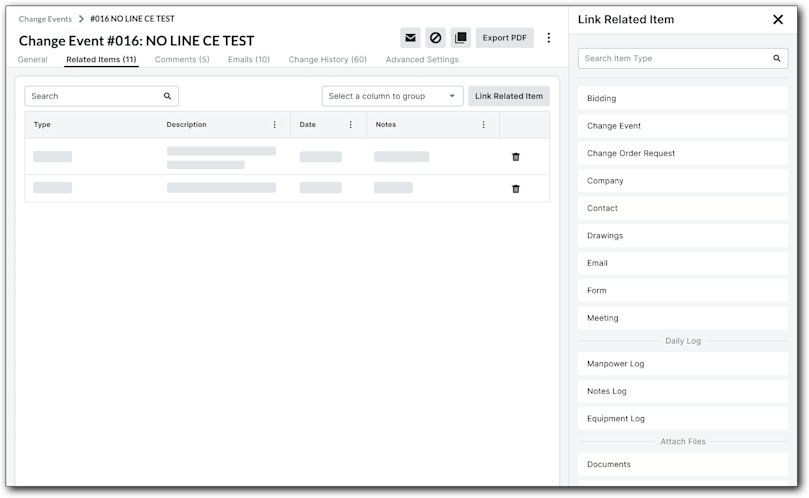
Type. Select the type of item you would like to relate to the change event.
Description. Once you choose an item type, the drop-down menu under 'Description' will populate with the items in your project's Procore account that match the type, or you will see an empty field where you can enter your own description.
Date. The date will automatically populate with the date that the item was created in Procore.
Notes. Add any notes related to this item.
Click an item type to filter available items by item type.
Click to select any available item, then add any notes related to this item and click Link.
Tip - Remove Related Items
To remove a related item, navigate to the change event's Related Items tab. Then click the delete  icon next to the related item to remove it.