Customize the Column Display in the Bidding Tool (Legacy)
Background
You can customize Bid Form columns to display the data most relevant to you and your project.
Things to Consider
Required User Permissions to the project's Bidding tool.
Steps
This is a legacy experience. Learn more about the Enhanced Bid Management Experience.
Navigate to the project's Bidding tool.
Open the bid package.
In the Bid List tab, click the vertical ellipsis icon.
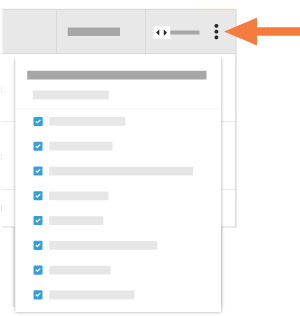
Choose from these options:
Show a Column
Mark the checkbox next to a column to show on the Bid List page.Hide a Column
Remove the mark from the checkbox that corresponds to the column to hide on the Bid List page.Reorder the Columns
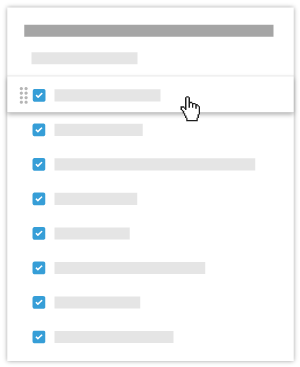
Grab the column name by the dots (⁞⁞). Then use a drag-and-drop operation to place the column into the desired position in the list.
Restore the Default Settings
Click the Reset to Default link at the top of the drop-down menu to restore to the original column settings.