Update an Installed App
Background
As a company administrator, you can upgrade an app to ensure your team has access to the latest features and enhancements. The upgrade process automatically preserves your existing company configurations, project settings, and project associations, eliminating the need to manually reapply settings after the update is complete. Note that if a company or project Permission Template is applied, it will take priority and will not be modified in the event of a Developer Managed Service Account (DMSA) permissions change.
Things to Consider
Required User Permissions
'Admin' level permissions on the company's Directory tool.
Steps
Navigate to the company level admin tool.
In the right sidebar under 'Company Settings', click App management.
Locate the app you wish to update and click View.
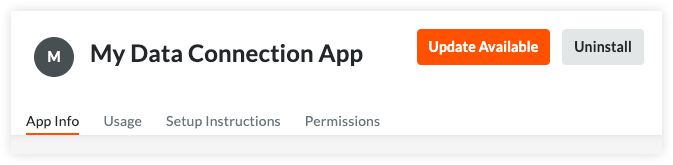
Note: If a new version is ready, an Update Available badge will display under the app name.
In the 'App Info' screen, click Update App.
Review the change details in the Review Update window:
For standard updates: Click Update at the bottom of the Review Changes window to complete the process.
For updates with a 'Configuration Modified - Breaking Change' notification:
Click Next to proceed to the Update Configurations screen.
Enter the required values into the empty fields for your configurations.
Click Update to complete the process.
See Also
Loading related articles...