Install an App from Procore
Background
As a company administrator, you have the ability to install an App from the Procore Marketplace in a company in Procore. You can install an App while you are in Procore, or install one directly from the Marketplace.
Things to Consider
Required User Permissions
'Admin' level permissions on the company's Directory tool.
Steps
Installing an App from Procore
Navigate to the company's Admin tool.
Under "Administrative Settings", click App Management.
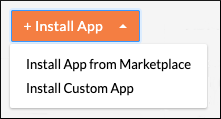
Click Install App and choose Install App from Marketplace.
Your browser is redirected to the Procore Marketplace.
Navigate to and click the tile for the App you want to install.
Click Install App (or Log in to Install). You are guided through the remaining installation steps.
Installing from the Procore Marketplace
If you are already browsing the marketplace or want to install an application directly from the external site, follow these steps:
Navigate to the Procore Marketplace.
Click Log In, enter your Procore credentials, and click Log In again.
Note: If you are a Company Admin for more than one company, you will be prompted to select the specific company you want to log in to and install the app in. Click Continue.Locate the application you want to install and click its tile.
Click Install App.
Review the installation details on the 'Install App' modal:
For Data Connection Apps, this modal shows the target company and the specific tool permissions you are granting to the app.
Click Install to confirm your selection and proceed.
Install a Custom App
Navigate to the Company level Admin tool.
Under 'Company Settings', click App Management.
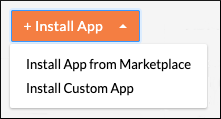
Click Install App and choose Install Custom App.
Enter the 36-character 'App Version ID' provided to you by the custom App developer.
Click Install.
Click Install again to confirm the installation.
See Also
Loading related articles...