Duplicate a Project Level Action Plan
Background
Duplicating a Project level Action Plan allows you to instantly copy the structure and general details of an existing plan to create new plans without starting from scratch. This saves time and ensures consistent plan organization across your project.
Things to Consider
Additional Information:
What Carries Over: Structure, sections, item details, titles, acceptance criteria, locations, and general info.
What Resets/Clears: Plan status resets to In Revision / Draft, and all previous signatures, approvals, and performed records are cleared automatically to provide a clean starting point.
Steps
Navigate to the project's Action Plans tool.
Click the Action Plan you want to duplicate to view its details.
Click Duplicate.
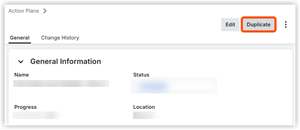
In the Duplicate Action Plan window, complete the following:
Edit the Title for the new action plan.
Optional: Mark or clear the Copy References checkbox.
Choose one of the following options:
Click Duplicate to create the new draft plan and return to the main Action Plans page.
Click Duplicate and Edit to create the new draft plan and immediately open the editing view.
Review and edit the general information (e.g., Name, Plan Manager, Approvers) as needed.
Review and update the sections and items.
Click Save Draft or Publish.

See Also
Loading related articles...