Invite From Your Directory
Navigate to the project's Bidding tool.
Click the name of the relevant bid package.
Click the Bidding tab.
Click the plus
 icon on the same row as the bid form.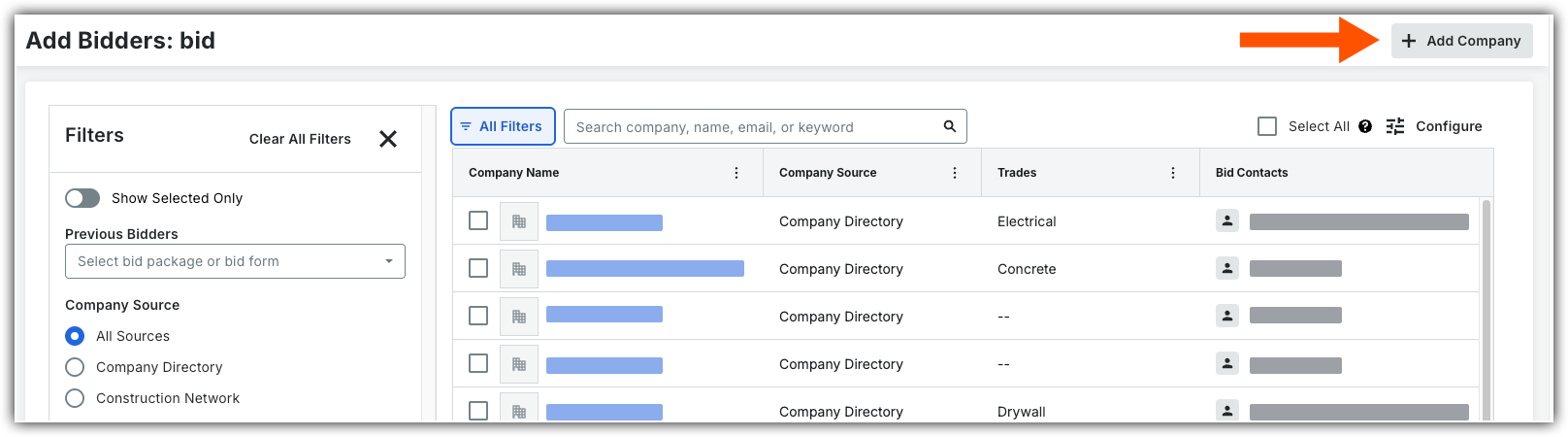
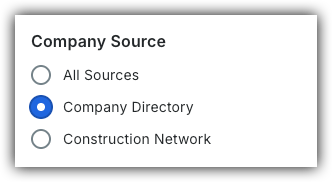
Under 'Company Source', select Company Directory.
OR
Click the bid form name.
Click the Bidders tab.
Click Add Bidders.
Under 'Company Source', select Company Directory.
To narrow the list of companies, use the following search and filter tools: Show/Hide Details
Search: Search by email address, vendor name, address, or company details.
If you are searching for a specific user, they must be designated as a Bid Contact to show in the search results.
Filter:
Click the All Filters
 icon.
icon.Select one or more filters to apply:
Show Selected Only: Move the toggle ON
 to show your selected bidders.
Previous Bidders: Select a previous bid package or bid form to show all bidders associated with that item.
Company Source: Choose where to find bidders: your Procore Company Directory, the Procore Construction Network, or both (All Sources).
Service Area: Enter City, State or Zip Code.
Select a distance parameter from the mileage drop-down menu to define your search radius.
Search by Office Address Only: Move the toggle ON
to only show companies that have offices within the area searched.
Trades: Select all trades that apply.
Cost Codes: Select one or more cost codes to filter for bidders associated with specific types of work.
Business Classifications: Select all Business Classifications that apply.
Company Types: Select all Company Types that apply.
Union Member: Move the toggle ON
to filter for vendors who are members of a labor union.Authorized Bidders Only: Move the toggle ON
to to display only those vendors officially authorized to bid by your organization.Minimum Average Rating: Select a star rating to filter for bidders who meet your company's minimum performance standards.
Market Sectors: Select all Market Sectors that apply.
Project Types: Select all Project Types that apply.
Average Contract Value: Select an option from the drop-down menu to filter vendors by financial capacity.
To remove filters:
Click the x on an individual filter to clear it.
Click Clear All Filters to clear all filters.
Optional: Click the Company name to view it's details.
Mark the checkbox for the companies you want to add to the bid form.
Decide when to invite bidders:
To add the bidders without sending an invitation, click Add Bidders.
To invite the bidders now:
Click Send Invitations.
Click Send Invitations again to confirm sending the bid invitation email.

