Enable Templates on Projects
Enable Lien Waivers
Enable First- and Sub-Tier Lien Waivers with Sworn Statements
Enable Lien Waivers
Navigate to the Project level Invoicing tool.
Click the Settings
 icon. This opens the Invoicing tool's Settings page.
Scroll to the Lien Waivers section. Then choose from these options:
Tips
Don't see any options? The lien waiver settings must be enabled for Procore Pay. See Enable Lien Waivers in the Company Payments Tool. See The project must have a 'State' selected in the Project level Admin tool on the General tab in the Project Location section.
What do the different lien waiver types mean? To learn about the types, see What types of lien waiver templates can you create?
Enable Conditional Lien Waivers. Mark this checkbox to enable the use of any conditional lien waiver templates created for use by your company. Clear the checkbox to disable the use of those templates. When you mark the checkbox, you also have the option to set the default template for the project:
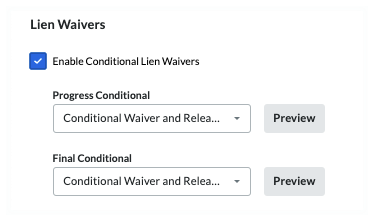
Progress Conditional. Select the template to use as your project's default lien waiver template. Click Preview to download a PDF version of the template.
Final Conditional. Select the template to use as your project's default lien waiver template. Click Preview to download a PDF version of the template.
Tip
Why did the template open in a browser or third-party application? Your computer or browser settings are most likely configured to open PDF files automatically. To change your system's settings, search for instructions online or contact your company's IT department for assistance.


