Details
With Project Overview, you can take the following actions:
View and Manage Project Information
View project details, project team, open items, and project activity from on place.
Project Details. Quickly view and manage your basic project information like project name, description, logo, and total value without having to navigate to the Admin tool.
Project Team. View the project team list, as well as their contact information and role on the project.
Recent Activity. See which items in your project have been recently created or updated, and by whom.
Project Message and Notes. Create a project message to share important details with your team.

Quick Create Items
Quickly create RFIs, Submittals, Daily Log entries, and more right from your Project Overview page.
Items available for Quick Create:
Change Events
Daily Log
Incident
Inspection
Observation
Punch List
RFI
Submittal
Task
Timesheet
See Quick Create an Item.
Get Project Insights
Easily identify and address key project risks through proactive insights, and improve project efficiency. Currently, there are targeted insights for the Daily Log, RFIs, and Submittals.
Manage Project Links
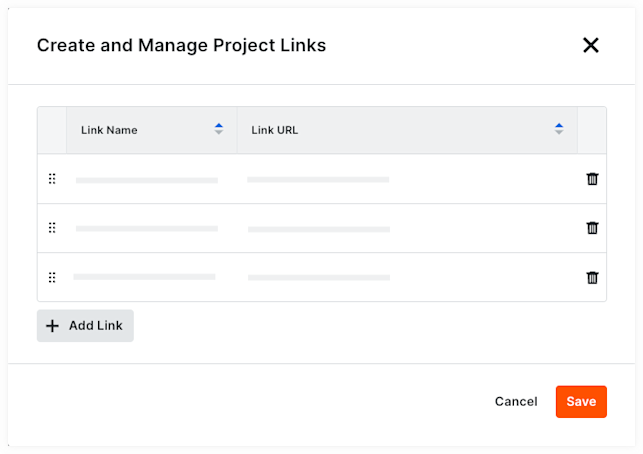
You can add links that will appear at the top of the Project Overview page to provide easy access to frequently visited pages or files for your team. See Add, Edit, or Delete Project Links.
View Open Items
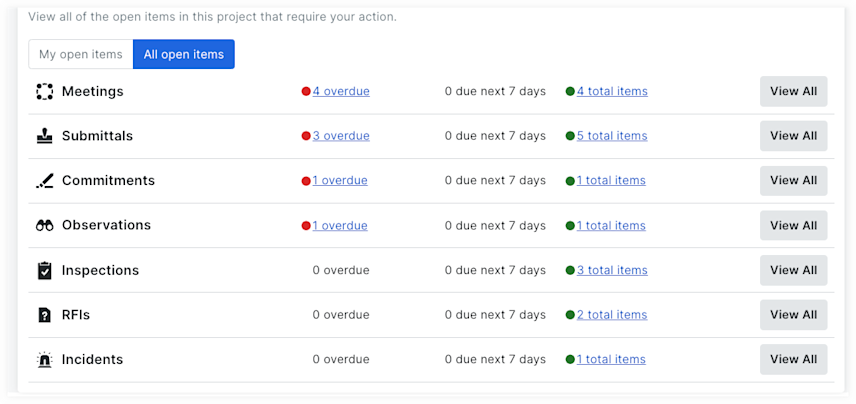
View your open items, as well as open items across your project that are assigned to others. You'll only be able to see details for items you have access to. See View Open Items.
Personalize Your Hub View (Closed Beta)
This feature is currently in closed beta with select Procore customers. Reach out to your Procore point of contact to learn more!
Procore allows Standard users to customize their own personal Hub views without altering company published views or impacting what colleagues see on their dashboards.
Self-Serve Personalization: Standard users can create a personal Hub view starting from any company-published view or a blank canvas.
Publishing Controls: Publishing a personal view makes it live for the creating user only. Company-published views are unaffected.
Company View Updates: If an admin changes the underlying company view, the user's personal view is preserved in draft and the user is prompted to review and re-publish.
Note: At this time, personal views are visible only to their creator and Company Admins for support. Users can not yet share a personal view with others, promote it to a company-published view, or assign it by role or project.