Ajouter un nouveau paiement à l’onglet Paiements effectués d’un engagement (ancien)
Contenu hérité
Cette page détaille l’ancienne expérience de l’outil Engagements au niveau projet.
Cette page détaille l’ancienne expérience de l’outil Engagements au niveau projet.
Utilisez l’onglet Paiements effectués sur un engagement pour effectuer le suivi de tous les paiements émis pour les factures de sous-traitant de l’engagement.
Autorisations utilisateur requises :
Autorisations de niveau « Admin » dans l’outil Engagements du projet.
Activez l’outil Facturation sur le projet. Voir Ajouter et supprimer des outils de projet.
Accédez à l’outil Engagements au niveau projet.
Cliquez sur l’onglet Contrats .
Dans le tableau Contrats, recherchez l’engagement associé à la facture pour laquelle vous effectuez le paiement.
Cliquez sur le lien Numéro pour ouvrir l’engagement.
Dans l’engagement, cliquez sur l’onglet Paiements émis .
Cliquez sur Modifier.
Ceci ouvre le formulaire Nouveau paiement.
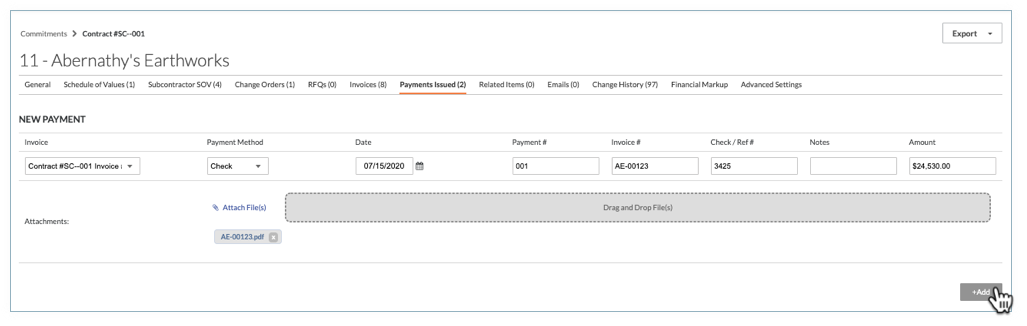
Saisissez les informations suivantes :
Facture
Sélectionnez un facture existant dans la liste déroulante.
Si le paiement est lié à la facture, la colonne « Montant payé » sur la page Factures passera de Non payé à Partiellement payé ou Payé pour la période de facturation en cours uniquement.
Paiement méthode
Sélectionnez un mode de paiement dans la liste déroulante : Chèque, Carte de crédit ou Électronique.
Date
Sélectionnez la date à laquelle vous souhaitez enregistrer le paiement émis.
Paiement #
Saisissez le numéro de paiement associé au paiement émis.
Facture #
Saisissez le numéro de facture associé au paiement émis.
Chèque/Réf #
Entrez le numéro de chèque associé à l’paiement émis.
Notes
Saisissez toute note supplémentaire concernant le paiement émis à des fins d’enregistrement.
Montant
Saisissez le montant du paiement.
Pièces jointes
Joignez tous les fichiers ou documents pertinents.
Cliquez sur Ajouter.
Chargement des articles connexes...