Search for and Filter Submittals (iOS)
Things to Consider
Required User Permissions:
'Read Only' level permissions or higher on the Submittals tool.
Note: To apply the 'Responsible Contractor' filter, users must also have 'Read Only' or higher permissions on the Project level Directory tool.
Additional Information:
This item can be viewed or edited offline if it was previously viewed and cached on your mobile device. Tasks performed in offline mode sync with Procore once a network connection is reestablished.
Steps
Search for a Submittal
Navigate to the project's Submittals tool using the Procore app on an iOS mobile device.
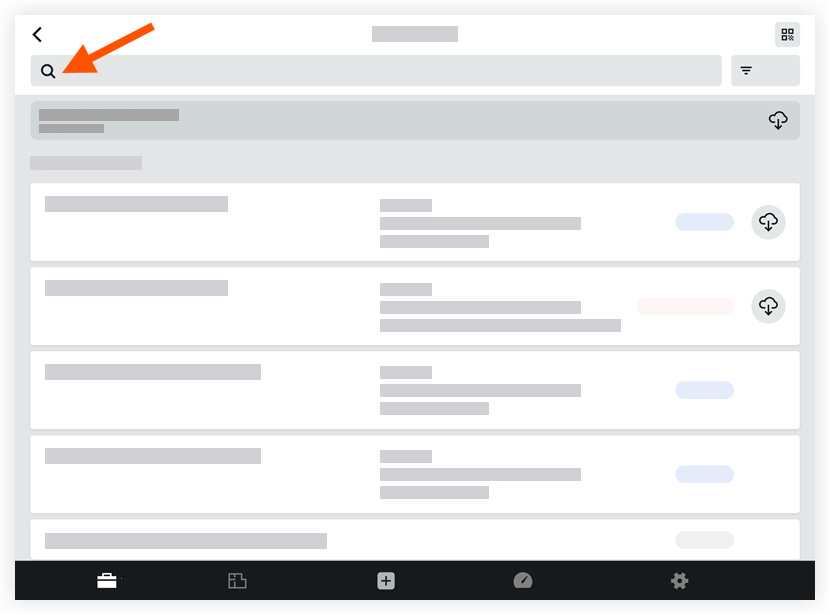
Type a keyword or phrase in the Search box or tap the QR code icon to scan a printed QR code that is linked to a specific location on site (see Scan a Submittal QR Code (iOS)). This will pull up all the submittals associated with that location.
Procore searches the following fields for matches:Description
Title
Filter Submittals
Navigate to the Submittals tool on an iOS mobile device.
Tap Filter.
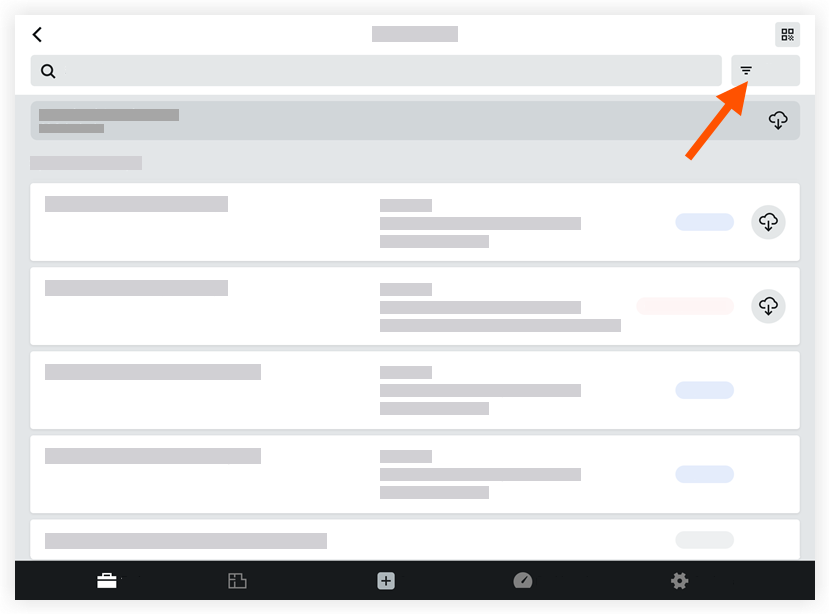
Tap one or more of the following options to apply as filters:
Group By:* Spec Section* Package
Revisions: Tap one the following filter options:* All Revisions* Only Current Revisions (Default).
Status: Tap one of the following filter options:* All* Open* Draft* Closed
Location: Tap to select a location.
Ball-in-Court: Tap to select a responsible party.
Responsible Contractor: Tap to select a responsible contractor.
Note: You must have ‘Read Only’ or higher permissions on the project’s Directory tool to use this filter.Type: Tap to select a submittal type to filter by.
Specification Section: Tap to select a relevant specification section.
Tap Apply.
To reset the filters:
Tap Filter.
Tap Reset All Filters.
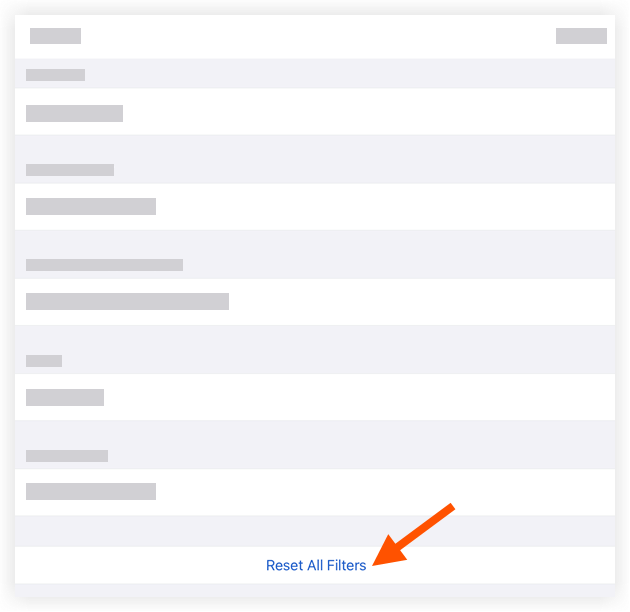
Tap Apply.
See Also
Loading related articles...