Configure View for Assignments Gantt
Background
The Assignments Gantt allows you to view resource requests, resource assignments, and time off for a specific project or across all projects and people within your company. It also provides a multi-day view from one day to three years.
Things to Consider
Steps
Adjust List and Timeline Ratio
Configure Displayed Information
Group by Project or Resource
Expand and Collapse Projects, Categories, and Subcategories
View Timeframe, Zoom In and Out
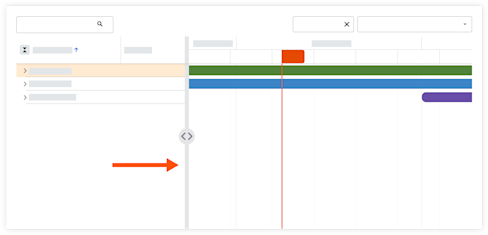
Adjust List and Timeline Ratio
Navigate to the Company level Resource Planning tool.
Click Assignments and select Gantt (Beta).
Hover over the divider that separates the grid and the graph.
Click the divider and move it to the desired location using a drag-and-drop operation.
Configure Displayed Information
Navigate to the Company level Resource Planning tool.
Click Assignments and select Gantt (Beta).
Click the Projects or Resources view.

Click the table settings
 icon.
icon.Projects View
Show / Hide Steps
Click the Columns tab.
Move the toggle
 ON or
ON or  OF show or hide columns on the gantt chart.
Job Title
Project Start Date
Project End Date
Task Start Date
Task End Date
Click the grip
 icon and drag the column into the desired display order.
Click the Gantt Chart tab.
Move the toggle
ON or OF show or hide details in the Gantt bars.Project Information
Allocation Information
Weekends
Time Off
Resources Not in Group
Row Height
Select Small, Medium, or Large.
Click and move the slider to adjust the size for the Task Border Radius.
Resources View
Show / Hide Steps
Move the toggle
ON or OFF position to show or hide details in the Gantt bars.Project Information
Allocation Information
Time Off Information
Hide Weekends
Click and move the slider to adjust the size for the following settings:
Row height in the Gantt
Task Border Radius
Select the Assignment Bar colors.
Allocation Percentage
Job Titles
Overtime
Percentage
Project
Select the Cell Units.
Allocation (percentage)
Cost
Hours
Man Days- Hours divided by paid shift hours.
Group by Project or Resource
Navigate to the Company level Resource Planning tool.
Click Assignments and select Gantt (Beta).
Select to see information grouped by Resources or Projects.
Expand and Collapse Projects, Categories, and Subcategories
Navigate to the Company level Resource Planning tool.
Click Assignments and select Gantt (Beta).
Next to the project, category, or subcategory, take one of the following actions:
Click the expand
 icon to expand the information
Click the collapse
 icon to collapse the information
To expand and collapse assignments for all projects or resources, click the expand  or collapse
  icon next to the 'Project Name' or 'Resource' heading.
View Timeframe, Zoom In and Out
Navigate to the Company level Resource Planning tool.
Click Assignments and select Gantt (Beta).
Configure your timeframe:
Select the date, and select the timeframe from the neighboring dropdown menu.
Click the zoom in
 icon or zoom out
  icon to view the Gantt from a single day, up to many years.