Create a Calculated Column in a Project Single Tool Report
Background
You can create calculated columns in custom reports in order to gain more insight to data by creating basic arithmetic calculations.
Things to Consider
Required User Permissions:
'Admin' level permissions on the Project 360 Reporting tool and 'Admin' level permissions on the tool that is being reported on.
Additional Information:
Calculated columns are sortable.
Calculated columns persist within any one given report.
Created calculated columns cannot be used for other calculations.
Calculated columns created by a customer are associated with a specific report and cannot be used on other reports.
Steps
Navigate to the Project 360 Reporting tool.
On the Reports tab, locate the report that you want to add the calculated column to.
Click the vertical ellipsis
 and select Edit.
OR
Click the report to open it and then click Edit in the sidebar.Under Custom Columns, click +Create Calculation.
In the New Calculation window, update the following fields:
Calculation Name: Enter a title for the new column you are creating.
What would you like to calculate? Select one of the following output types: Percentage, Currency, Number, or Date Variance.
Column X: Select a column from the drop-down menu to use in the calculation.
Operator: Select one of the following operators to use in the calculation: +, -, x, or /.
Column Y: Select a second column from the drop-down menu to use in the calculation.
Optional: Click +Add row to add another operation and column to the calculation.
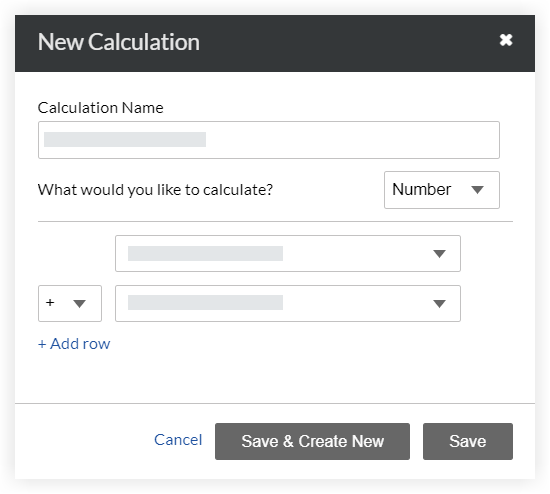
Click Save to save the column or click Save & Create New to save the column and to create a new calculated column.
Your calculated column will appear in your custom report, but the calculated values will not be visible until after you save the report.Optional: To create an aggregate for that column's data, see Aggregate Data in a Project Report.
Click Update Report.
See Also
Loading related articles...