Change Your Password
Background
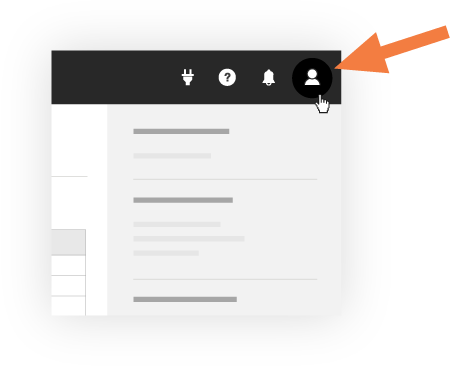
If you know your current password, you can change it at any time using the Steps below on the Password tab of your My Profile Settings page. If you do not know your current password, refer to How do I reset an unknown password?
Things to Consider
Password expiration timelines, strength requirements, and idle timeout session lengths are controlled by administrators for their company's Procore account. Procore employees are unable to change these polices.
You must know your current password to use the Steps below. If you do not know your password, follow steps to reset an unknown password.
Procore's Password Requirements:
Eight (8) or more characters
At least one (1) uppercase letter
At least one (1) lowercase letter
At least one (1) number
At least one (1) special character (!@#$%^&*)
Passwords must match
You cannot reuse your last four (4) passwords