Log in to Procore Using SP-Intitiated SSO with Okta
Background
Single Sign-On (SSO) lets you access Procore using your existing company credentials, eliminating the need to manage multiple passwords. When your organization enables service-provider initiated (SP-initiated) SSO for Procore with Okta, you can authenticate directly through your company's Okta sign-in portal or the Procore login page. This ensures secure, centralized access to your projects across desktop and mobile devices.
Things to Consider
Required User Permissions:
You must be invited to join Procore. To receive a "Welcome to Procore" email, a user with 'Admin' permissions on the Company Directory must create your account in their Directory tool. See Add a User Account to the Company Directory or Add a User Account to the Project Directory.
Supported Platforms:
Procore Web Application
Procore for iOS
Procore for Android
Additional Information:
Once you log in, your role determines what you can access. Your administrators manage your permissions.
Prerequisites
A Procore Administrator and/or your Okta Super Administrator must complete the steps in Setup Guide: Okta and Configure SP-Initiated SSO for Procore with Okta.
Steps
Open your browser and go to: https://login.procore.com
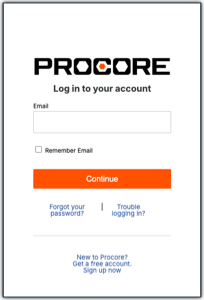
Enter your email address and click Continue. Use your work email address or the email where you received your Procore invitation.
Finish signing in:
If your screen redirects you to your company's sign-in page: Enter your work credentials (email address and password) and click Sign In.
See an example Show/Hide Details
Below is an example of an Okta sign-in page. Keep in mind, your company's page may look different.
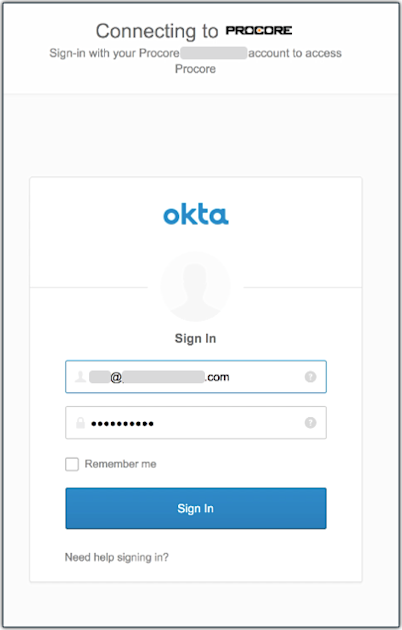
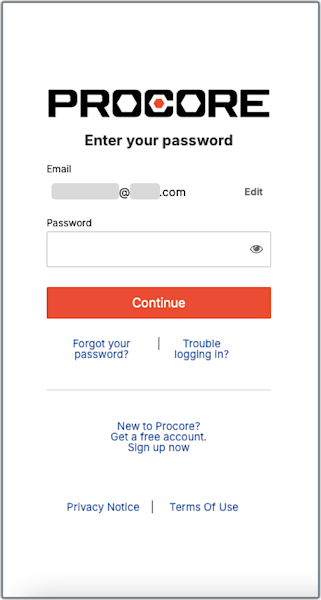
If your screen simply reveals a password field: Enter your Password and click Continue to sign in.
See an example Show/Hide Details
If you see the standard Procore login page below, simply log in with your Procore email and password instead of Single Sign-On (SSO).
 Tip
Need Help Logging In? Contact your company’s IT department or IdP administrator. Procore Support does not have access to your private credentials.