Search for and Filter Instructions (iOS)
Things to Consider
Required User Permission:
'Read Only' or higher level permissions on the project's Instructions tool.
Note: Instructions marked as 'Private' are only visible to the instruction's creator, users designated in the Attention field, users listed in the Distribution list, and Admin level users on the project's Instructions tool.
This item can be viewed or edited offline if it was previously viewed and cached on your mobile device. Tasks performed in offline mode sync with Procore once a network connection is reestablished.
Steps
Navigate to the project's Instructions tool using the Procore app on an iOS mobile device.
Search for Instructions
Tap into the Search bar.
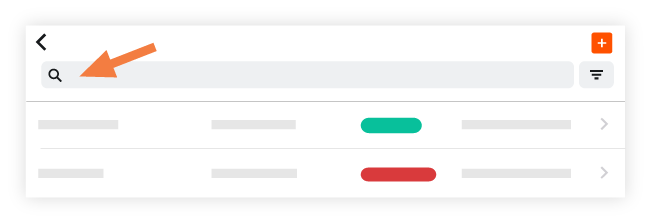
Type a keyword or phrase into the Search bar; Procore will return results that match the following fields:
Title
Description
Attention
Creator
Optional: Tap an item to view its details.
Filter Instructions
Tap the Filter
 icon.
icon.Tap one or more of the following options to set the desired filters:
Status:
All
Issued
Closed
Draft
Trades: Select the trade associated with the instruction.
Type: Select the type associated with the instruction.
Optional: Tap an item to view its details.
See Also
Loading related articles...