Search for and Filter Inspections (iOS)
Things to Consider
Additional Information:
This asset or item can be viewed or edited in offline mode provided that the asset or item was previously viewed and cached on your mobile device.
Prerequisites
Steps
If an expected inspection is missing from your search results or filtered views, check your Inspections Sync Settings. Items outside your selected status filters or closed timeframe window are excluded from downloading to your device and will not display offline or in search results.
Search for Inspections
Navigate to the project's Inspections tool on an iOS mobile device.
Tap the Search
 bar.
bar.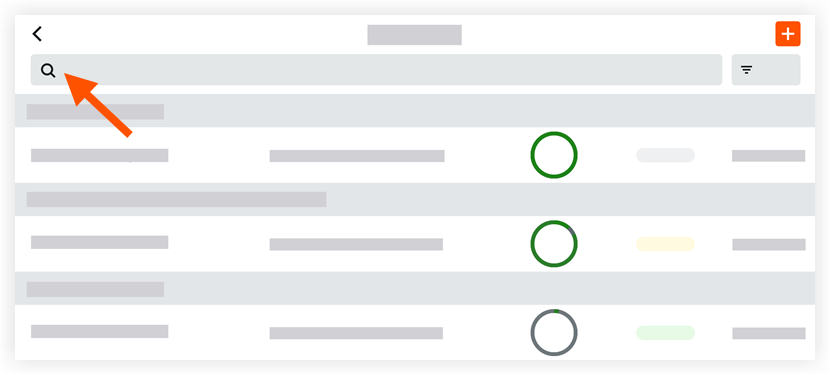
Begin typing a search term.
Note: Results that match the search will automatically begin populating.
Add Filters
Navigate to the project's Inspections tool on an iOS mobile device.
Tap the Filter
 icon.
icon.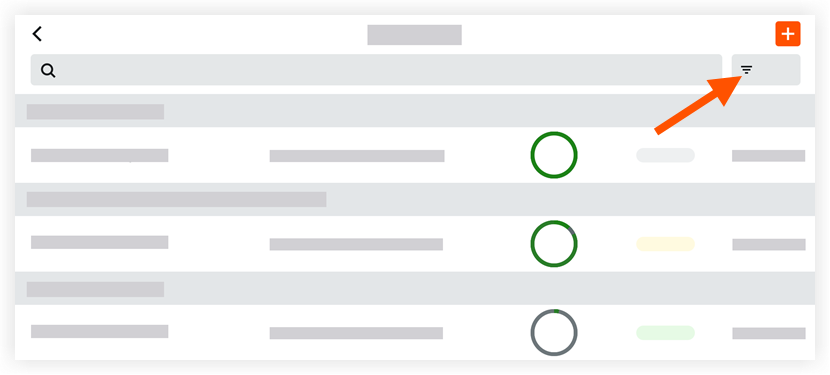
Tap the parameters you want to filter by.
Note: Several filters contain a search bar that allows you to search through the list of items in that filter.Status
Ownership
Location
Assignees
Trade
Template
Type
Due Date
Responsible Contractor
Tap Apply.
Optional: To clear the filters that were applied:
Tap the Filter
icon.Tap Reset All Filters.