Search and Filter for Incidents (Android)
Things to Consider
Required User Permissions:
'Read Only' level permissions or higher on the project's Incidents tool.
Prerequisites
Steps
Navigate to the Incidents tool using the Procore app on an Android mobile device.
Choose from the following options:
Search for Incidents
Add Filters
Search for Incidents
Tap the Search
 icon.
icon.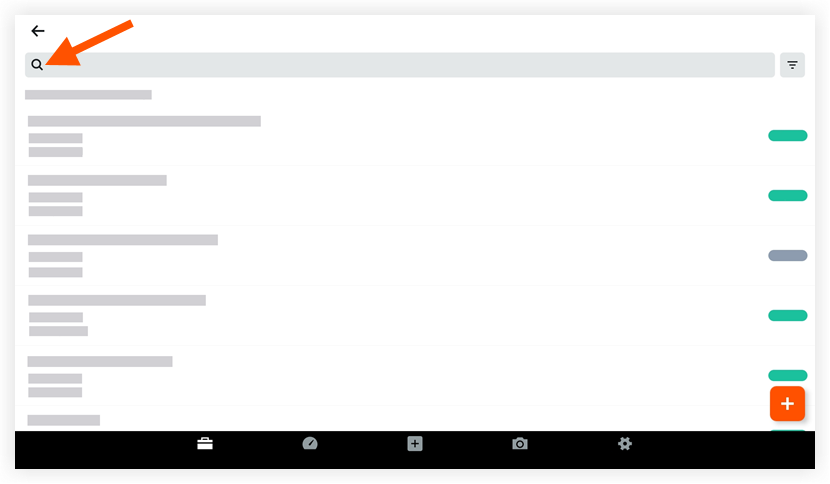
Enter a keyword or phrase into the Search bar.
Note: The search query will automatically display results that match the following fields:Title
Creator
Number
Status
Location
Description
Contributing Condition
Contributing Behavior
Hazard
Add Filters
Tap the Filter
 icon.
icon. 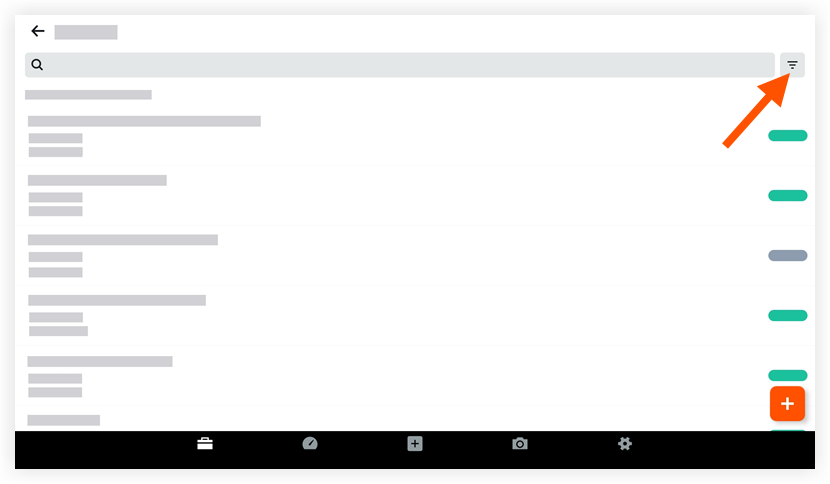
Tap the filters you want to apply to the incidents list page. Choose from the following options:
Status
Location
Event Date
Recordable
Tap Done to apply the filters and return to the list page.
Optional: To reset the filters that you applied, tap the Filter
icon again and then tap Reset.
See Also
Loading related articles...