Create App Configurations in Procore

For Use with Embedded Apps Only

Be aware that creating App Configurations only applies to Embedded Apps. If you do not see a Configurations tab on an App's show page, that indicates that you do not have the Embedded Experience version of that App. Please visit the Procore Marketplace to obtain the embedded version of the App you want to configure.

Background

App configurations allow you to customize how Embedded Apps behave and determine where they can be launched within Procore. Depending on your organization's setup, configurations can be scoped tightly to a single project, deployed globally across all active and future projects, or made available company-wide.

Things to Consider

  • Required User Permissions

    • To Create a Configuration for a Specific Project:

      • User must be a valid contact in the Procore Directory tool.

    • To Create a Configuration from the Company Admin tool:

      • 'Admin' level permissions on the company's Directory tool.

Steps

Create a Configuration for a Specific Project

Follow these steps if you are a project user setting up an app configuration inside a single, specific project.

  1. Navigate to the specific project in Procore.

  2. On the top navigation bar, click the Select an App dropdown menu.

  3. Click App Management.

  4. Locate the App you want to configure and click View.

  5. Click the Configurations tab.

  6. Click Create Configuration.

  7. In the Projects field, ensure your current project is selected.

  8. Enter a Title for the configuration. (Note: App users will see this display name in their 'Select an App' menu.)

  9. Enter values for any required or optional Configurable Fields (e.g., a target Google Sheet URL).

  10. Click Create.

Create a Configuration from the Company Admin Tool

Follow these steps if you are a Company Administrator deploying an app to specific projects, globally to all projects, or at the company level.

  1. Navigate to the company-level Admin tool.

  2. Under 'Company Settings' or 'Administrative Settings', click App Management.

  3. Locate your target App, click View, and select the Configurations tab.

  4. Click Create Configuration.

  5. Define the scope and deployment of your configuration:
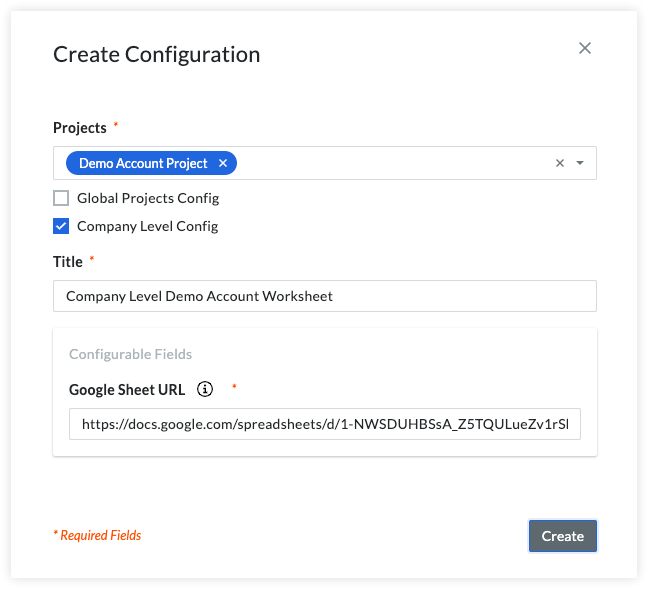
    Create Company Level Config

    • For specific project(s): Use the Projects dropdown menu to manually select the project(s) you want this configuration applied to.

    • For all projects (Global): Mark the Global Projects Config checkbox to apply this configuration automatically to all active and future projects in the company.

    • For the Company Level: Mark the Company Level Config checkbox to allow users to launch this app from the company-level header menu.

  6. Enter a Title for the configuration. (Note: App users will see this display name in their 'Select an App' menu.)

  7. Enter values for any required or optional Configurable Fields.

  8. Click Create.

Configure Permissions for a Data Connection App

If the app you're installing is listed as a Data Connection app, continue with the steps below.

To enable permissions for the app on some projects
  1. After installing the app, navigate to the App Management tool from the Select an App menu in Procore.

  2. Click View next to the app you're configuring.

  3. Click the Permissions tab.

  4. Select the project(s) the app will be available in from the Permitted Projects drop-down menu.

  5. Click Add.

to enable permissions for the app on all current and future projects
  1. Once the integration is installed, go to the Company Level Permissions tool.

  2. Click the Projects Permissions Template tab.

  3. Create a Global permission template that provides the permissions the app lists as required. See Create Permission Template for detailed instructions.
    Note: It's best to name the permission template with the app's name to easily identify it.

  4. Go to the Company level Directory.

  5. Search for the app name to locate its "user" account in the Directory.

  6. Click Edit next to the user account.
    View App Button

  7. In the permissions area of the user record, click the Select Default Permission Template option.

  8. Choose the template you've set up for the app, then click Apply.
    Note: Do NOT manually adjust permissions for the app's user account in the permissions grid in the Company Directory tool. A permission template must be applied.

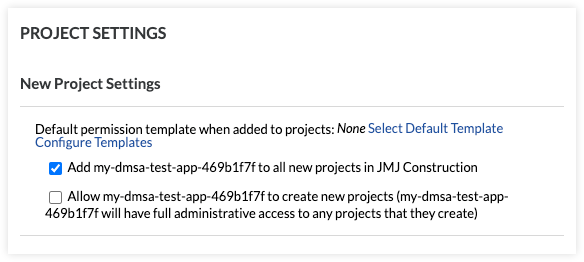
  9. Next, mark the checkbox for Add [app-user-name] to all new projects.
    This setting will add the ‘App User’ to all new Procore projects moving forward.
    Dmsa All New Projects

  10. To add the ‘App User’ to existing projects, click Add All next to Projects this user does not belong to.

  11. Click Save.

For Embedded Apps: Project Configuration

  1. Immediately after clicking Install, a Create Configuration modal will appear.

  2. You can use this modal to create an initial App Configuration now, or click Skip to create a configuration and apply it to projects at a later time.

For Data Connection Apps: Selecting Permitted Projects

Upon confirming the installation of a Data Connection app, you will prompt the Add Permitted Projects workflow:

  1. Use the Add Permitted Projects modal to select one or more projects that you want the Data Connection App to have access to.

  2. Click Add to grant immediate access.

  3. Alternative: If you prefer to manage project access later, click Skip.

Managing Data Connection Permissions via App Management

If you skipped the initial setup or need to change project permissions for a Data Connection app on specific projects later, use the following method:

  1. Navigate to the App Management tool from the Select an App menu in Procore.

  2. Click View next to the specific app you want to configure.

  3. Click the Permissions tab.

  4. Select the project(s) you want the app to be available in from the Permitted Projects drop-down menu.

  5. Click Add.

Enabling Data Connection Permissions for ALL Projects (Current & Future)

To ensure a Data Connection app functions flawlessly across your entire company portfolio without manual project-by-project assignment, you must apply a global template to its DMSA user account:

  1. Go to the Company Level Permissions tool.

  2. Click the Projects Permissions Template tab.

  3. Create a Global permission template that provides all the tool permissions the app lists as required.
    Note: It is best practice to name this permission template after the app itself so it can be easily identified later.

  4. Navigate to the Company level Directory tool.

  5. Search for the app's name to locate its automatically generated "user" account in the Directory list.

  6. Click Edit next to that app user account.

  7. Scroll to the permissions area of the user record and click the Select Default Permission Template option.

  8. Choose the global template you set up for the app, and click Apply.

    Important: Do NOT manually check or adjust individual tool permission boxes inside the permissions grid on this screen. A dedicated permission template must be applied directly to the account.

  9. Mark the checkbox labeled "Add [app-user-name] to all new projects" under the 'New Project Settings'. This ensures the App User is added to all new Procore projects moving forward.

  10. To push the app out to your active portfolio, locate the section titled 'Projects this user does not belong to' and click Add All.

  11. Click Save to finalize your changes.

See Also

Loading related articles...