Ajouter une logique conditionnelle à un modèle d’inspection au niveau projet
Éléments à prendre en compte
Steps
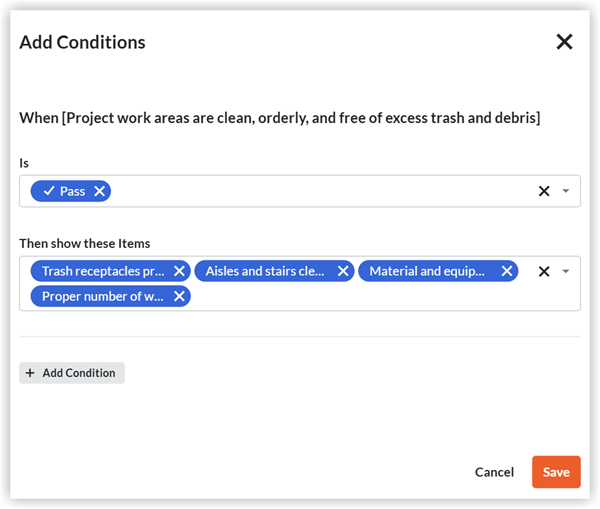
The rule for inspection conditions is as follows: When 'Parent item' Is 'Display Condition', Then show 'Child Item(s)'.
Locate the Project level inspection template and click Edit.
Under Inspection Items, find a 'Parent Item' you want to begin your conditions with and click the Add Conditions
 icon.
icon.Select your 'Display Condition'.
Select your [Child Item(s)]. Items not selected will become a 'Hidden Item' when the 'Display Condition' is selected by the inspector.
If you want to add another condition within the same parent inspection item, click + Add Condition.
Click Save.
Repeat Steps 1 - 6 to add additional 'Parent Items'.
If applicable, use the up arrow
 icon and the down arrow
  icon to move inspection items up or down.
When you are done adding all of your conditional logic items, click Update.
Tous les postes d’inspection doivent déjà être contenus dans la même section d’inspection que l’élément parent pour pouvoir être ajoutés en tant qu’élément enfant.
Vous pouvez imbriquer jusqu’à quatre conditions maximales dans un « élément parent ».
Les types de réponse Nombre, Texte, Signature et Date ne peuvent pas être associés à une logique conditionnelle.
Vous pouvez voir l’historique des modifications de tous les éléments de logique conditionnelle ajoutés ou supprimés.
La logique conditionnelle ne peut être ajoutée qu’aux postes d’inspection au niveau entreprise au niveau entreprise.
La logique conditionnelle ne peut être ajoutée qu’aux postes d’inspection au niveau projet au niveau projet.